File sharing for architects: a workflow for drawing sets
Name each revision, send the drawing set as one link and collect signed PDFs through a request link.

File sharing for architects works best as a short routine you repeat on every project: name the revision, send the drawing set as one link, collect comments and signed PDFs through a request link, and keep every issued version. This article walks through that routine for architects, interior designers and small practices who send drawings and renders to clients, contractors and planners.
You do not need special software for most of it. You need clear file names, one place where the latest set lives, and a way to receive files that does not depend on email attachments.
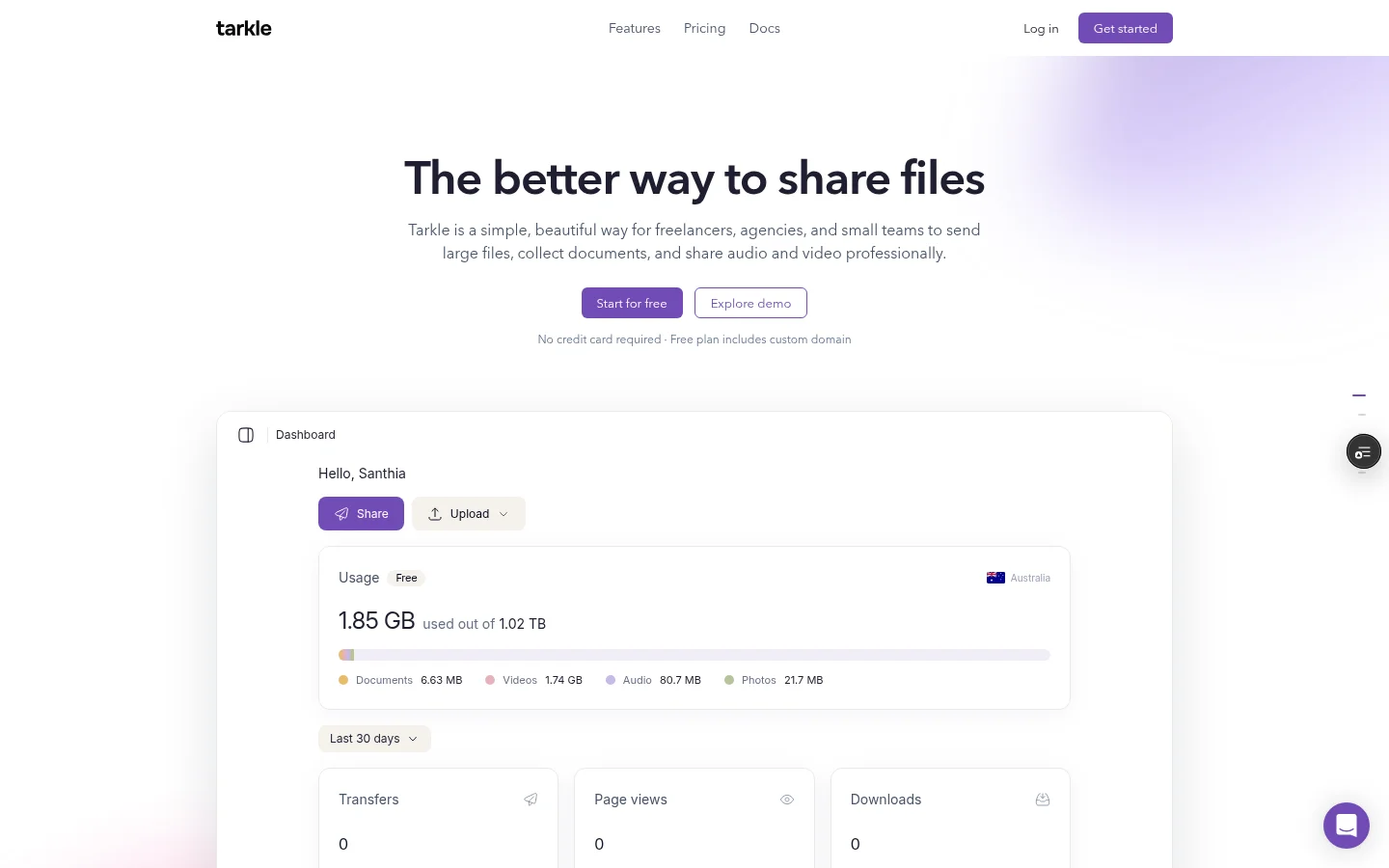
Tarkle covers the two steps email handles badly. You send the set as one link, and you receive signed PDFs through a request link that needs no sign-in. Free includes both.

Why drawings and renders break email
A single high-resolution render can be larger than an email allows. A full drawing set with PDFs, model exports and image sheets is bigger still. The usual result is a stack of messages, a shared drive link that asks the client to sign in, or a contractor working from a set that was already replaced.
The fix is to stop attaching files and send a link instead. With Tarkle you can share files by link: pick files or folders, get one link and send it anywhere. The person opening it needs no account to download. Free supports uploads and transfers up to 1 GB each. Pro and Agency support files up to 200 GB. Check the size of your biggest render against your plan before you send, and see send large files for the larger limit.
Export renders at the size the reader needs. A client choosing finishes needs a clear image, not the print master. Send the master only to the person who will print it.
Name every revision before you send it
Most confusion about "which drawing is right" comes from file names, not from the sending tool. Put the revision in the name of each file, not only in the email. A pattern that works for small practices is project code, sheet number, title, revision letter and date, for example 2210_A-201_Ground-floor-plan_RevC_2026-10-27.pdf.
Keep the pattern the same for everyone on your team. Use letters for issued revisions and keep a short revision note in the message: what changed, on which sheets, and why. A contractor should be able to read two lines and know whether to redo any work.
Never name a file "final". Use the revision letter, and let the date show how recent it is.
File sharing for architects: send the drawing set as one link
Decide first whether you are sending one file or a folder. Send one file when the reader needs a single thing, such as a planning application PDF or a render for approval. Share a folder when the reader needs the whole set and you want them to see the structure: plans, sections, elevations, schedules.
Name what you send so that it answers "which set is this", for example "Maple House, issue for tender, Rev C", and put the revision note in your message to the recipient.
Issue each revision as a new link instead of changing an old one. The recipient then keeps the earlier set as a record of what they were sent. The badges and the Activity section on a transfer show whether it was viewed or downloaded, so you can see whether the set has been opened. Transfer status is the page for that.
For clients, add a password and tell them the password in a separate message or by phone. On Free you can also protect shared files with passwords. You can set an expiry date too, after which the link stops working. That suits tender sets that should not be used after the deadline.
Show your own name, not a stranger's
A link from an unfamiliar address can look like spam. Custom branding puts your logo, colours and favicon on every transfer page, request page and portal. Free includes custom branding and a custom domain, so your sharing links can open on your own address. On Free, a small Powered by Tarkle line stays on those pages. The branded file sharing links guide explains the layers if you want to set it up properly.
Collect comments and signed PDFs with a request link
Replies to drawings usually arrive as photos of annotated printouts, screenshots in chat or a PDF buried in a long email thread. Give clients one way to respond instead.
A file request collects files from anyone with one link, into the folder you choose. A file request lets anyone with the link send files to a folder in your workspace, with no sign-in. For drawings, the instructions might say: "Please upload the signed approval sheet for Rev C, and any marked-up PDFs, by Friday."
You can set a deadline and a size cap on a request. The deadline closes the request on a date. The size cap limits how much a visitor can upload at once, so a request can say how big a single submission may be.
Use a separate request for each purpose: one for the client's signed PDFs, one for the contractor's site photos, one for the planner's documents. On Free, only one file request form can be active at a time. The app's message on Free reads: "Upgrade to Pro for unlimited File Requests." A second request open at the same time therefore needs Pro.
Ask for all comments in one reply per revision round. "Send everything by Friday, one list" saves you from reconciling five emails.
To be clear about what this does: a file request receives the file. It does not add a signature, and it does not make a document legally binding. The client signs in their usual way, and the request link is where the signed PDF arrives.
Keep the old versions
Once a drawing is revised, you need the earlier one to still exist. If a dispute starts at the site, you want to show exactly what was issued on which date.
On Pro and Agency, file versions let you upload a new version of a file, see its history and go back to an earlier one. That keeps your working file tidy without a folder full of copies named "old" and "old2". Keep the issued PDFs in a separate folder per revision as well, because those are what you sent and what people signed against.
Keep a copy of the issued sets in your practice's usual archive too.
A checklist for each issue of drawings
Check the largest file against your plan's upload limit.
Name each file with sheet, title, revision letter and date.
Write two lines on what changed.
Send the set as a new link, with the project and revision in the message.
Add a password if the content is sensitive, and send it separately.
Set an expiry date if the set is only valid for a period.
Create a request link for signed PDFs and comments, with a deadline.
Move the issued set into its own revision folder and keep a copy in your own archive.
What to remember about Tarkle
Tarkle sends a drawing set as one link, with your logo and colours on the page, and receives signed PDFs through a request link that needs no sign-in. Free is for one person, with uploads up to 1 GB and one active file request form at a time. Pro and Agency take files up to 200 GB and keep file versions. Start for free and send your next drawing set that way.