How to sell digital files online without building a shop
Sell a file pack with a paid Tarkle link: what to sell, how to price it, a free sample and how buyers pay.

You can sell digital files online with one link: a paid transfer that takes the buyer's payment through Stripe, then opens the files. No storefront, no theme, no product catalogue. For a course creator, photographer, designer or musician with one good file pack, this is a job for an afternoon, not a project.
This guide walks through the workflow in order: decide what to sell, price it, show a sample, set up the paid transfer, deliver the files, and handle refunds and taxes.
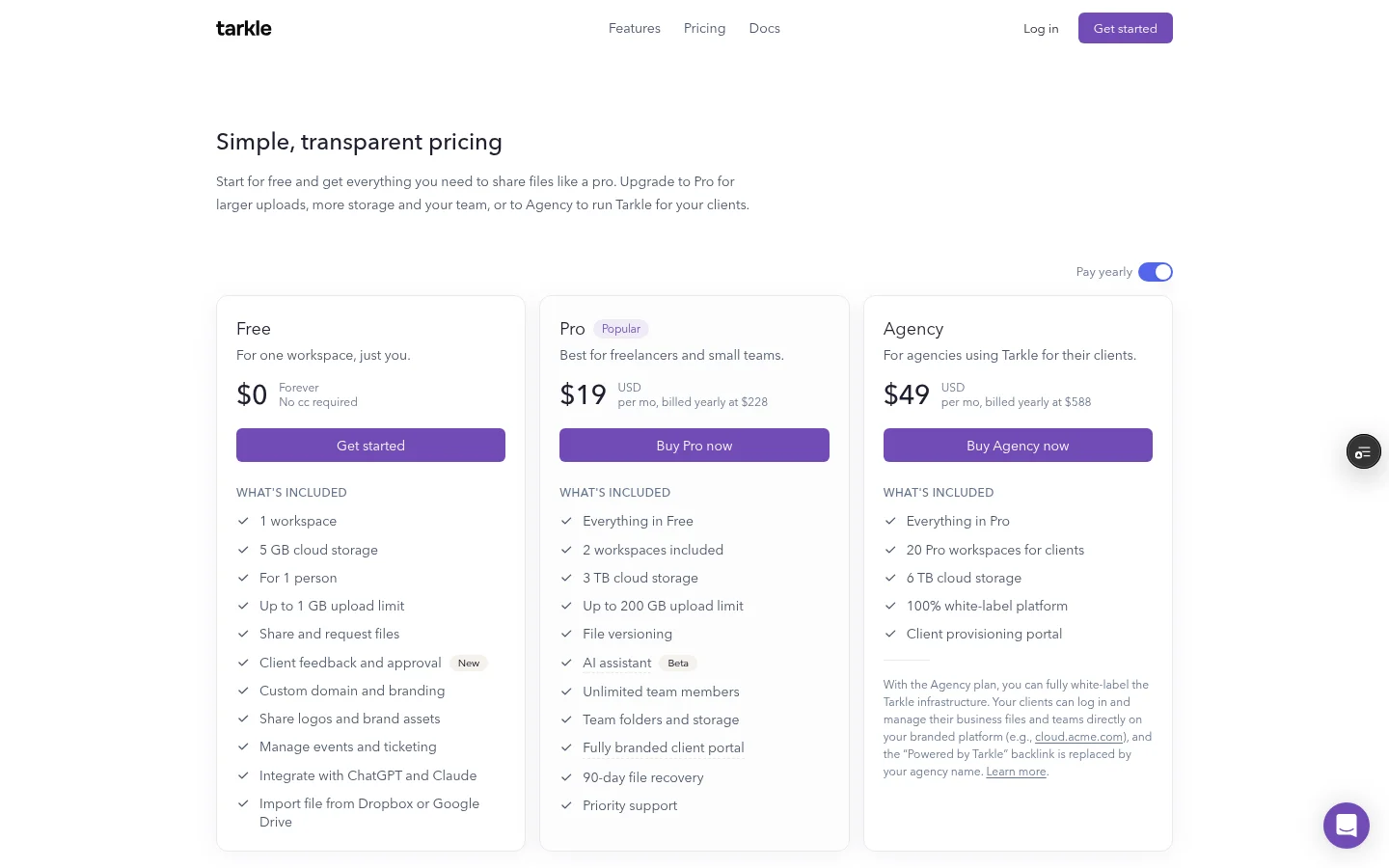
Tarkle's paid transfers handle the payment part. You put a price on a transfer, the buyer pays in a dialog on the page, and the payment goes to the Stripe account you connect. Tarkle is free to use forever, so you can test sharing with real files on the Free plan. Charging for a transfer needs Pro, which is $29 a month or $19 a month billed yearly.
What to sell when you sell digital files online
The best first product is something you already made and already get asked for. Course creators sell workbooks, templates and slide decks. Photographers sell presets, texture packs or a set of finished images for licensed use. Designers sell icon sets, fonts, mockups and Figma or Photoshop files. Musicians sell stems, sample packs and loops.
Keep the first pack narrow. A buyer should understand in one sentence what is inside and what they can do with it. "40 wedding presets for Lightroom" sells better than "creative bundle".
Write the one-sentence description before you collect any files. If you cannot say what the pack is and who it is for, the buyer will not be able to either.
Pricing a file pack: the logic, not a number
Price from the buyer's side. Ask what the pack saves them: an hour of work, a day of work, or a purchase they would otherwise make from a stock site. A pack that saves a freelancer a billable day can carry a higher price than a pack of nice extras.
Compare against two things: what similar packs cost where your buyers already shop, and what a single custom version of your work would cost them. Your price should sit clearly below the second and in line with the first.
You set the price and currency on each paid transfer. If you want a small starter pack and a full pack, make two transfers and give each its own price. Choose a currency your buyers recognise, within what Stripe supports.
Show a sample before anyone pays
Buyers hesitate when they cannot see what they are getting. When someone opens a paid transfer link, the payment page shows the title, the summary, the number of files and their total size, and the names and sizes of up to five files. The files open only after payment, so give buyers the proof elsewhere.
The simple way is a separate free sample transfer. Put three to five representative files in it and share the link on the page where you sell. If you want people to see the work without being able to keep it, use view-only transfers, which let people look at files without offering a download. Tarkle can preview files in the browser in more than 100 file formats, so people can judge the work without downloading it first.
A free sample is also a way to build a mailing list. Make the sample downloadable and ask for an email before the download starts, then follow up with the full pack.
Keep the sample and the paid pack as separate transfers. A paid transfer cannot be password protected or view-only, because payment is the access gate. The paid pack stays simple, and the sample does the persuading.

Show a sample that represents the average file in the pack, not only the best one, so the buyer knows what they are paying for.
Set up the paid download in one sitting
Setup has two parts: a one-time connection to Stripe, then one transfer for each pack. Paid transfers are a Pro feature.
First, connect your own Stripe account. Go to Settings → Integrations → Payments → Stripe and add your live keys and webhook signing secret. Then go to Settings → General → File settings and turn on Enable paid transfers. It is off by default and needs a Pro plan.
You need both the Stripe connection and the Enable paid transfers switch. On the Free plan you can still connect Stripe, but Enable paid transfers stays locked with a Pro badge until you upgrade. Turning it off hides the Payments page and stops new paid transfers. Links you already sold keep working for buyers.
Then, for each pack:
Click Share to start a new transfer. Pick files or folders from your Library, upload new ones, or import them from Dropbox or Google Drive.
Write a Title. It is required, and it is the heading your buyer sees. The optional Summary can be up to 150 characters.
At the end of the access settings, turn on charging for the download through Stripe. Enter the price and check the currency: your workspace currency is selected, and you can change it to any currency Stripe supports.
Click Create transfer and copy the link. Create transfer stays disabled until you enter a price.
With paid transfers you charge through your own Stripe account, and the payment goes to that account.
Before you announce anything, buy your own pack once with a real card. You will see exactly what a buyer sees and catch a typo in the title while it is still cheap to fix.
Delivery: what the buyer gets
The buyer opens your link and lands on a payment page with your logo and brand colour, the title, the summary, the files included and the price. They click Proceed to checkout, and a Pay to download dialog opens on the page with Stripe's payment form. The card carries the line Secure checkout via Stripe. Once the payment is confirmed, a processing page waits and then the files open for them.
Recipients do not need a Tarkle account. They can open or download shared files without creating one. A buyer who gives an email gets a receipt with a link back to the files, when email sending is set up for the workspace. The link carries an access token for that purchase, and it uses your custom domain when one is active.
On your side, Payments in your sidebar lists each paid transfer with its price, number of purchases, total earned and the latest buyers. The Payments item appears once paid transfers are switched on and Stripe is connected. A buyer who gives an email is added to your contacts.
Branding matters here because buyers are handing over money. Your logo, colours and favicon make the page look like your work. For the wider job of sending finished files to clients, see file sharing.
Refunds and taxes are yours to decide
Write your refund policy before you sell, and put it on the page where you sell, in plain words. Decide what a buyer can get back, for example when a file is broken or not as described, and apply the same rule to every buyer. State it once, clearly, and keep to it.
Taxes depend on where you and your buyers are. Check the rules where you live, or ask an accountant. This guide gives no tax advice.
Set this up today
Pick one file pack and write its one-sentence description.
Decide a price from the buyer's side and a refund rule in one paragraph.
Create a free sample transfer with a few representative files.
Connect Stripe and switch on Enable paid transfers. Charging needs Pro, so check the pricing page first.
Buy the pack yourself, then share the link.
If you do not have an account yet, start on the Free plan and build the sample first. Connect Stripe and move to Pro when you are ready to charge.
What to remember about Tarkle
Tarkle sells a file pack with a paid transfer: you set the price, the buyer pays in a dialog on the page, and the payment goes to your own Stripe account. The Free plan lets you share a sample with real files, and charging needs Pro, which is $29 a month or $19 a month billed yearly. Start for free.