Share video by link track views: a how-to for editors
Send a link to a video page with a built-in player, pick view-only or download, and check the status for opens.

Editors who search for "share video by link track views" want two things: a cut the client can watch without fuss, and a sign that they opened it. Send a link to a page with a built-in player instead of the file, then check the status afterwards. This guide walks through the steps and says what the status shows, so you read it correctly.
Why a link works better than an attachment
An attachment arrives as a file. The client has to save it, find a player that opens the format, and then send notes about a copy that now sits in their downloads folder. A link sends a short message to a page where the video plays in the browser. If you want the wider delivery routine (naming, versions, approvals), read how to deliver video to clients. This article stays on one job: sending a watchable page and reading whether it was opened.
Open the link in a private browser window before you send it. If it asks you to sign in, so will your client.
Send a page with a player instead of an attachment
Upload the video once, get a link to a page that plays it, and send the link. A video transfer gives you a page with a built-in player, so people can watch before they download. Video and audio sharing covers the page itself, and custom branding puts your logo, colours and favicon on every transfer page, so the cut arrives under your name.

Recipients do not need a Tarkle account to download a transfer. Before you send, decide who should be able to open it:
Add a password if the cut is unreleased, and send the password in a different message or channel from the link. Password protection requires a password before anyone can open a transfer.
Set an expiry date if the cut is only valid until the next round. Link expiration sets a date after which the link stops working.
Ask for an email address first if you need one. Email capture asks for an email address before a download starts, and on a video transfer the page shows that form first.
Send one link per cut version and put the version in the transfer name, for example 'Brand film v3'. The status then belongs to that version, and nobody reviews v2 by mistake.
View-only or download: decide before you send
This is the choice that matters most for a work in progress. The two behaviours are opposites.
A view-only transfer lets people look at files without offering a download. The view-only transfer fits review cuts, rough assemblies, and anything with a temporary grade or music you have not cleared.
A download is for final delivery, when the client needs the master or the social cutdowns. Direct download links go further. Switch a transfer to direct download and the file starts downloading as soon as the link is opened. Use the normal branded page when you want a message, a preview or an email gate before the download.
View-only is not a guarantee. It means the page offers no download, and it is not a promise that nobody can record the screen. For a truly sensitive cut, combine view-only with a password and an expiry date, and keep the audience small.
Use two transfers for one project: a view-only transfer for each review round, and a separate download transfer only after the client signs off.
Share video by link track views: read the status
Once the link is out, transfer status shows whether a transfer was delivered, viewed or downloaded. Three badges matter:
Delivered means the notification email was delivered. Its tooltip reads 'Email was delivered', which tells you the email arrived, not that anyone opened the page.
Viewed shows how many times the page was opened. Its tooltip gives the time of the last view.
Downloaded shows how many times the file was downloaded. Its tooltip gives the time of the last download.
Two details help you read them. Each view is logged against the transfer with its time. A download can also keep the email address the downloader entered, along with their country. So the view count tells you the page was opened and when, while a download can tell you more about who took the files.
Get an alert when the client opens it
You do not have to keep refreshing the status. The Slack integration sends alerts when files are viewed, downloaded or uploaded. Slack is available on Pro, and Agency includes everything in Pro. In the Slack settings you pick the channel that receives the alerts, and the dialog lists the events it sends, including Transfer viewed and Transfer downloaded. Slack notifications explains the alerts in more detail.
Put the video on your own site
Embed video on your website plays a video you uploaded inside any web page, with Tarkle's own player and no third-party player. It is available on Pro. Turn on public embedding for the transfer first: it is off until you do.
A short checklist before you send the cut
Export a review copy, not the master, and upload it as a video transfer.
Name the transfer with its version, so nobody reviews the wrong cut.
Choose view-only for review rounds and download only for final delivery.
Add a password for unreleased work, and send it through a different channel.
Set an expiry date that matches the review deadline.
Open the link in a private window to check it plays.
If your organization is on Pro or Agency and you want alerts, connect Slack, then send the link.
After a day, check the status. Opened and not downloaded is normal for a review. Not opened at all means it is time to follow up.
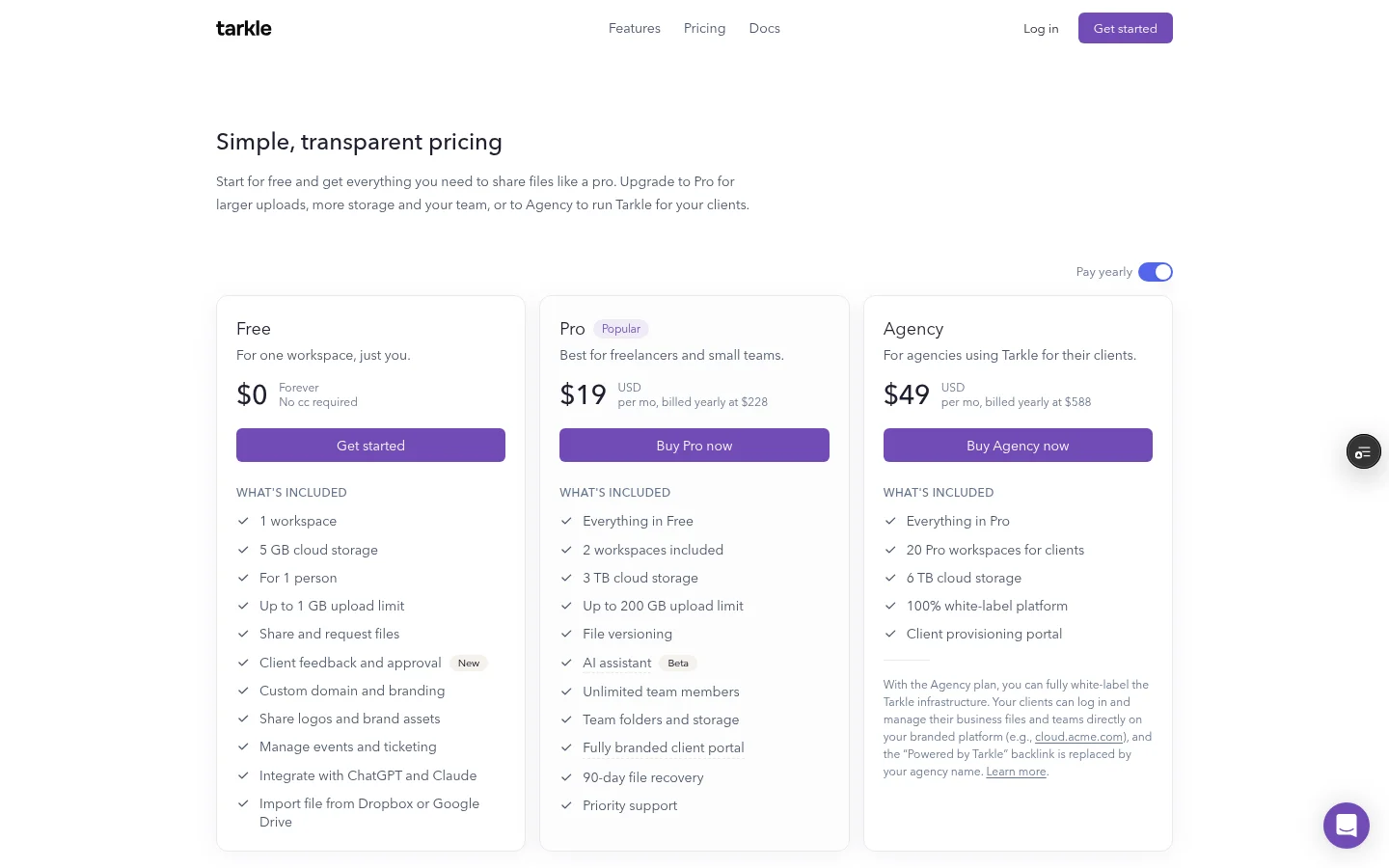
On Free, you can protect shared files with a password, and each upload is up to 1 GB. Slack alerts and embedding on your own site are Pro features.
What to remember about Tarkle
Tarkle sends a video as a link to a branded page with a built-in player, so the client can watch in the browser. Use view-only for review rounds and download for final delivery, then read the Viewed and Downloaded badges. Slack alerts and embedding need Pro. Start for free and send your next cut as a link.