File link download limit: one-time, expiry, password
Where a download counter breaks client links, and which Tarkle control fits a team, a forwarded link or one person.

A file link download limit is a counter that switches a link off after a set number of downloads. For client files that counter is a risk, because the link can die before the right people have the files. Tarkle gives you three controls that follow the recipient instead of a count: a one-time link, an expiry date and a password. This guide shows where a counter breaks and which control fits which case.
What is a file link download limit?
A download limit is the maximum number of times a shared file can be downloaded. When the count is reached, the link stops working. SendGB, a file transfer service, defines it the same way in its post of 1 November 2026: "A download limit is the maximum number of times a shared file can be downloaded." The same post states its own answer, that with SendGB "Your file can be downloaded as many times as needed until its storage period ends."
That is one way to avoid the problem. For client work you often want something in between: a link that does not break for the people you chose, and does not stay open for ever for everyone else. A counter cannot tell those two apart. An expiry date, a password and a one-time link can.
Where a download counter breaks a link
SendGB lists the situations where a counter hurts: large teams, forwarded links, failed downloads and more than one device. Three of them matter most when you send files to clients.
A team. You send one link to a client, and the client shares it with colleagues. With a counter, the last colleague meets a dead link. SendGB's example: "You send one link to a team. The limit is reached quickly and the last colleagues cannot get the file."
A forwarded link. The person you sent it to forwards it to someone else. A counter treats the forwarded download like any other and uses up a download meant for your client.
Several devices. A client downloads on a laptop and later wants the files on a phone. SendGB's table puts it this way: "Downloading on a computer and later on a phone counts as two downloads."

Photo by Vitaly Gariev on Unsplash
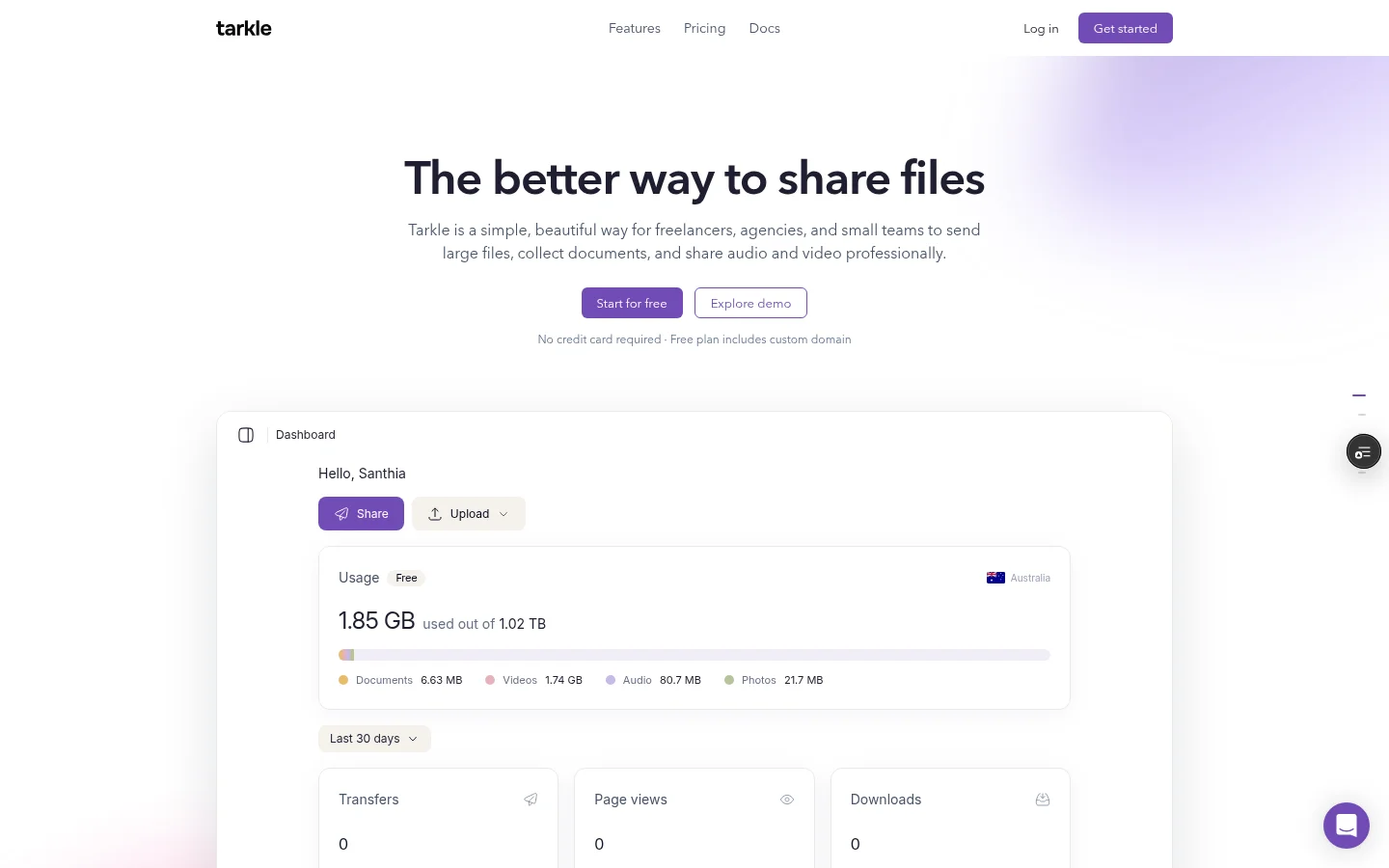
On Tarkle, a download does not end a transfer link unless you turned on one-time access. Without it, the link keeps working until it expires or you disable it. Tarkle still records downloads, so you see what happened: the badges on a transfer show how many times the page was viewed and whether the files were downloaded, and Burned, Expired and Disabled transfers are marked too. The transfer status page has the detail.
One-time links: one person, one download
A one-time link works once, then burns itself. You turn on one-time access for files that should only be opened once, such as a signed contract, a licence file or a set of credentials for a single contact.
The first download burns the link, not opening the page. A client who opens the page to look has not used it. Once the files have been downloaded, the link is spent for everyone, including a second device or a colleague it was forwarded to. Burned transfers carry a Burned badge in your list, so you can tell which links are spent.
That makes the one-time link the one control that ends a link after a download. If you want a link that ends after two or three downloads, Tarkle has no setting for a download count, so use an expiry date to give a team a window instead. A paid transfer, where payment is the access gate, cannot use a one-time link, an expiry date or a password.
Tell the recipient the link downloads once, and send it when they are ready. If it burns before they have the files, send a new transfer.
Expiry dates: teams, forwarded links and review rounds
An expiry date suits any file that several people need for a while. You pick a date when you create a transfer or a file request. After that date the link stops working and the files are no longer reachable through it. Nobody has to remember to clean up. An expired transfer shows an Expired badge in your list, so you see at a glance what is still live.
For a team, the date does what a counter cannot: everyone who has the link can download until the date. See link expiration for how it works.
Set the date a day or two after the last person who needs the files, not on the day you expect them to download.
Passwords: when the link may travel
A password is the control to use when you cannot control where the link goes. You can add one to any transfer. Recipients must enter it before they can see or download anything, so a forwarded link on its own is no use to the wrong person. Send the password through a different channel from the link, such as a message instead of the email that carries the link.
You can change or remove the password later without creating a new link. Passwords are included on the Free plan, and recipients do not need a Tarkle account to open a shared file. More on password protection and, for the wider picture, secure file sharing without an account.
Which control fits which case
Read the table by the recipient, not by the file. The same PDF needs one control for a single named client and another for a client team.
Case | Control | What it does |
|---|---|---|
One named person, one download | One-time link | Burns after the first download |
A team, or a link that will be forwarded | Expiry date | Works for everyone until the date |
The link may reach people you did not choose | Password | Asked for before anything opens |
You want to know who took the files | Email capture | Can ask for an email address before a download starts |
You sent it to the wrong person | Disable the transfer | Stops the link straight away |
A password can be added to any transfer, and an expiry date is picked when you create one, so a client team can get both: the date gives them time, and the password protects the link while it is open. To see the badges after you send, use transfer status. To switch a link off early, see revoke access instantly, which explains that a disabled transfer shows a Disabled badge and can be turned back on. For email capture, the page can ask for an email address before a download starts, so you find out who took the files.
Common mistakes
Choosing a one-time link for a team. The first download spends it for everyone.
Sending the password in the same message as the link.
Setting an expiry date on the day you expect the download, with no margin.
Leaving old transfers open after a project ends. Disable them or let the expiry date do it.
For more ways to layer these controls on a branded link, read branded file sharing links.
What to remember about Tarkle
Tarkle matches the link control to the recipient: a one-time link for one person, an expiry date for a team, a password for a link that may be forwarded, and a status badge so you see what happened after you send. A download does not use up a normal link, and the one-time link is the single control that ends a link after a download. Start for free and send your next client file with the control that fits it.