File sharing for real estate teams: a routine per listing
Keep approved listing files in one folder and send each set from a branded link with a password and an expiry date.

Real estate teams send the same kinds of files for every listing: photos, floor plans, videos and the documents buyers and sellers ask for. When each agent sends them by email, the approved version gets lost and the wrong file reaches the wrong person. File sharing for real estate teams works better as one routine for each listing: one folder for approved files, one branded link for each group of recipients, and a check of who can open the link before it goes out.
This article sets out that routine step by step, with the Tarkle controls that cover each one. The last sections compare the plans.
Keep one folder for each listing
Start by giving every listing its own folder in the workspace. Inside it, keep only the files that are approved to share: the final photo set, the floor plan PDF, the video cut and the brochure. Drafts and working files stay in a separate folder that the team uses internally.
Tarkle's folders and library let you organise files in folders, search them and filter them by type. Folders and library covers the basics.

Photo by Cabri Caldwell on Unsplash
Name each listing folder with the street address and its status, for example "12 Oak Street, approved". Agents find the right set in seconds, and a draft is less likely to go out by mistake.
Share approved materials with one branded link
When the files are ready, open a new file transfer and add them from the workspace with Existing, or upload them from your computer. A file transfer is created in three steps: choose the content, write the title and summary, then choose the access. File sharing describes it as one branded link, where you decide who can open it and see what happens next. The full steps are in How to create a file transfer.
Recipients of a public or password-protected transfer do not need a Tarkle account. You choose Link mode, which gives one shareable URL, or Email mode, which sends the link to specific addresses. In Email mode you can type or paste up to 30 email addresses, and each recipient gets an individual email with the transfer link.
Check who can open the link before you send
Each transfer lets you add these access choices in the last step of the form:
Password protected: the link asks for a password. Give the password to the recipient separately from the link.
Expiration date: the link stops working on a date you set. The latest date is three years from today.
Gated: the recipient enters a name and email before the files open.
View only: the recipient can preview images, PDFs, videos and audio, but cannot download them.
Burn after read: the transfer is deleted after the first download.
Not every option works together. Direct link and View only cannot be combined, and neither can Gated with View only, or Burn after read with View only. Pick the one that fits the send: a password and an expiry date for a buyer's packet, or View only for a draft a client should look at but not download.
Some sends should reach one company only. On Pro and Agency you can limit a transfer to one client organization, so only signed-in members of that organization can open it. Contacts of another organization are refused, even when they are signed in. Limit a transfer to one client organization walks through the steps.
Before you send, open the link in a private browser window and check what the recipient sees. It takes a minute and catches a wrong password or a wrong file.
Collect buyer documents with a file request
Documents usually come back the other way. A file request is a link that lets anyone send files straight into a folder in your workspace, and the person uploading does not need a Tarkle account. Give each listing its own request with a deadline, and its uploads land in a subfolder for that request. File requests explains how the link works.
Pro has no limit on active file requests. On Free, a workspace can have one active file request.
Pause a link when access should stop
Sometimes a send should stop at once. Open the three-dot menu on the transfer and choose Pause transfer. The transfer shows a Disabled badge, and its files stay where they are. To turn the link back on, open the same menu and choose Enable Transfer. Revoke access instantly describes this control.
Which plan fits a real estate team
Free is for one person. It includes one workspace, 5 GB of cloud storage and an upload limit of up to 1 GB, so a team that shares listings together needs Pro.
Pro costs $29 a month, or $19 a month billed yearly ($228 a year). It adds team members, team folders and storage, file versioning, a fully branded client portal and files up to 200 GB.
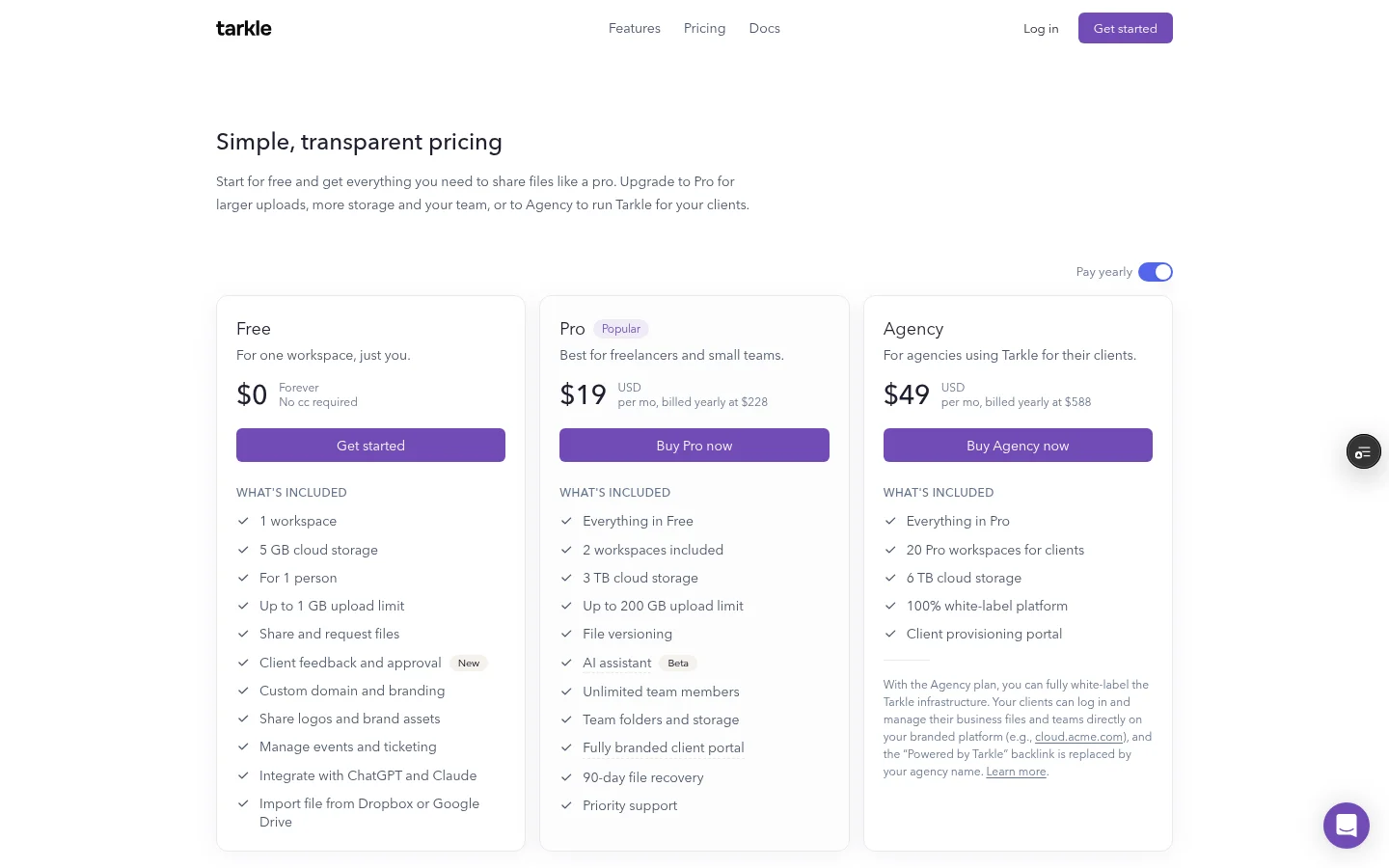
The client portal is a branded place where each client signs in with their email, sees only what you shared with them, and sends files back. Agency is for agencies using Tarkle for their clients, so a real estate team that shares listings with its own buyers and sellers starts on Pro.
File sharing for real estate teams: set up one listing this week
Pick one live listing and run it through the routine: a folder with approved files, one transfer with a password and an expiry date, and a file request for the documents you need back. Check the plans, then begin on the Free plan with the same steps.
What to remember about Tarkle
The routine takes one folder, one branded link and one file request for each listing. Pro also adds team folders, file versioning and a fully branded client portal. Start for free and compare the plans on pricing.