Is a file share link safe? How to check it before you click
A short check for file share links: read the domain, spot a login request, and confirm with the sender.

Is a file share link safe? It can be genuine and still lead somewhere you should not trust. In October 2026, a phishing campaign copied legitimate file share notifications and hid a fake Microsoft 365 login page inside a PDF. This guide gives you a short check to run before you click, and what to do if you already signed in.
What happened in the Frame.io case
On 20 October 2026, Hackread reported that Ocean Security had found a phishing campaign, named Phantom Preview, that abused legitimate Frame.io notifications and hidden PDF links to deliver fake Microsoft 365 login pages (Hackread, 20 October 2026). The emails came from the real address notifications@frame.io. Ocean Security has confirmed that Frame.io itself was not compromised. The attackers used its sharing system to send the emails.
The sender name did not protect the reader. A message can come from a real address and still point to a fake page, so the check has to happen before the click.
Step 1: Check where the link goes
On a computer, point at the link without clicking. Your browser shows the address at the bottom of the window.
On a phone, press and hold the link to see its address.
Read the domain, the name between the two slashes and the next slash. The last two parts of the name show who owns it. Anything added in front of them can be chosen by anyone.
In the Phantom Preview case, the hidden link went through a redirect on a Cloudflare Pages address and then to a newly registered domain, according to Hackread.
A link can look right in the email and still lead somewhere else. Read the address where it goes, not the text on the button.
Is a file share link safe when it asks you to log in?
A file page has no reason to ask for your work password. Use this table to decide what to do.
What you see | What it can mean | What to do |
|---|---|---|
The page asks for a Microsoft 365 or Google password before it shows a file | Sharing a file does not need your work login | Do not enter it. Confirm with the sender |
The page asks for a password the sender told you to expect | The sender set a password on the link | Enter it only if you were expecting this file |
A PDF or file opens a login screen when you follow a link inside it | In the Phantom Preview case, hidden links in documents led to fake login pages | Close it and check the file with the sender |
The domain is not the service you know | The page may be a copy | Close it and ask the sender |
Hackread reports that researchers recommend checking the files behind a notification, not only the sender or the link. A PDF can carry a hidden link. If a document you did not expect asks you to sign in, do not follow it.
Step 3: Confirm with the sender another way
Do not reply to the email to confirm it. Use a channel you already use with that person: a phone number saved in your contacts, or the chat or app where you normally work together. Ask whether they shared a file today and what its name is.
Save the phone numbers of the people who send you files. A confirmation call only helps if you do not use a number from the suspicious message.
Step 4: Remember that a share link does not need a login
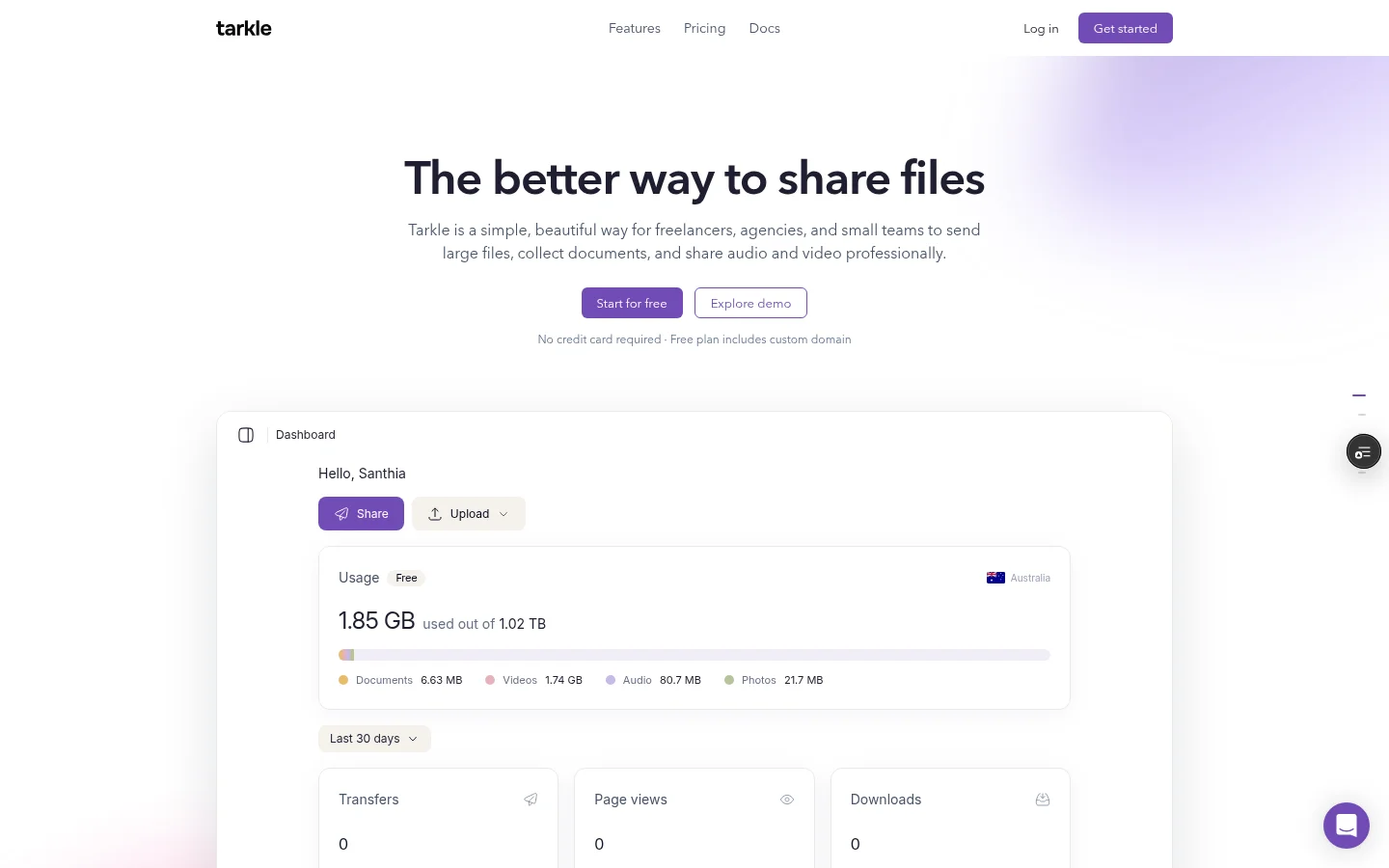
A Tarkle share link needs no account to download. Tarkle describes it this way: "Pick files or folders, get one link, and send it anywhere. No account needed to download." You can read that on Tarkle's file sharing page. So if a link you were sent asks you to sign in to Microsoft 365 or Google before you get a file, stop and confirm with the sender, whoever it seems to come from. For more on links that need no account, see secure file sharing without an account.
What controls a sender can set on a Tarkle link
If you send files with Tarkle, you can set these controls on a link. The password and expiry steps are in the help center. The controls guard the file page itself. Checking the message that brought you there stays with you, which is why the steps above come first.
Password: require a password before anyone can open a transfer. See password protection.
Expiry date: set a date after which a transfer or request link stops working. See link expiration.
One-time download: a link stops working after its first download, and you can issue a fresh link if someone needs a second go. See one-time download links. Opening the page does not use the link up. The first download does.
Disable: disable a link in one click, and enable it again later. See revoke access instantly.
If you already entered a password or signed in
Act quickly, in this order:
Change the password of the account you signed in with, from a device you trust.
Turn on two-step verification for that account, if it is not on yet.
Tell the IT contact or the person who runs your email, so they can look for new sign-ins and new forwarding rules.
Tell the sender through the channel you used to confirm, so they can warn others who got the same message.
If you sent the link yourself with Tarkle, disable it, as the controls above show.
If the same password is used on other accounts, change it there too.
Your own Tarkle login matters as well. Passkeys and two-step verification protect your workspace login with a passkey or an authenticator app.
Common mistakes
Trusting the sender name alone. The Phantom Preview emails came from a real address.
Opening a PDF because the email looks like a routine share.
Replying to the suspicious email to confirm it.
Entering a work password because a page looks like the service you know.
Leaving a share link open after the project has ended.
What to remember about Tarkle
Tarkle lets a sender protect a link with a password, an expiry date, a one-time download or a one-click disable. Those controls guard the file page, not the message that points to it, so confirm any unexpected request with the sender. The Free plan costs $0 forever with no credit card required, so you can start for free and try the controls with your own files.