Sell video clips online: a delivery setup for creators
Pick a delivery setup for each clip, then see how a paid transfer charges buyers through your own Stripe account.

If you want to sell video clips online, the job comes down to three choices for each clip: how the buyer previews it, how they pay, and how they get the file. Tarkle covers one of those jobs well: a transfer link that charges for download, with the money going to your own Stripe account. This guide helps you decide whether that fits your clips, then shows how to set it up.
Paid delivery is not a storefront
A paid transfer is one link. The buyer opens it and sees your name, the title, the summary, the files included and the price. They pay on Stripe's payment form, and once the payment is confirmed the files open for download. They can come back to the same link later.
That makes a paid transfer a delivery tool, not a shop. Each paid transfer has its own title, summary and price. A catalogue of clips, with a page for each one, is a different job, and a transfer does not build it for you. The Payments page shows what each paid transfer has sold, so you can see which clip earns.

Photo by Glenn Carstens-Peters on Unsplash
Five questions to pick a setup for each clip
Should buyers see part of the clip first? Set a free preview, so buyers can look before they pay.
Is watching enough? A view-only link lets people watch in the browser without a download button. A paid transfer cannot use view only, so a clip you charge for is a download sale. For the view-only setup, see View only file sharing.
Does the buyer pay before the file opens? Then charge for download. Payment is the gate.
Is the clip one sale or a set? A transfer can hold several files, and you set one price on it. Put clips in separate transfers when buyers should pay for each one.
Where does the money go? Into your own Stripe account. Tarkle never holds it.
Set up a paid transfer to sell video clips online
Before you start
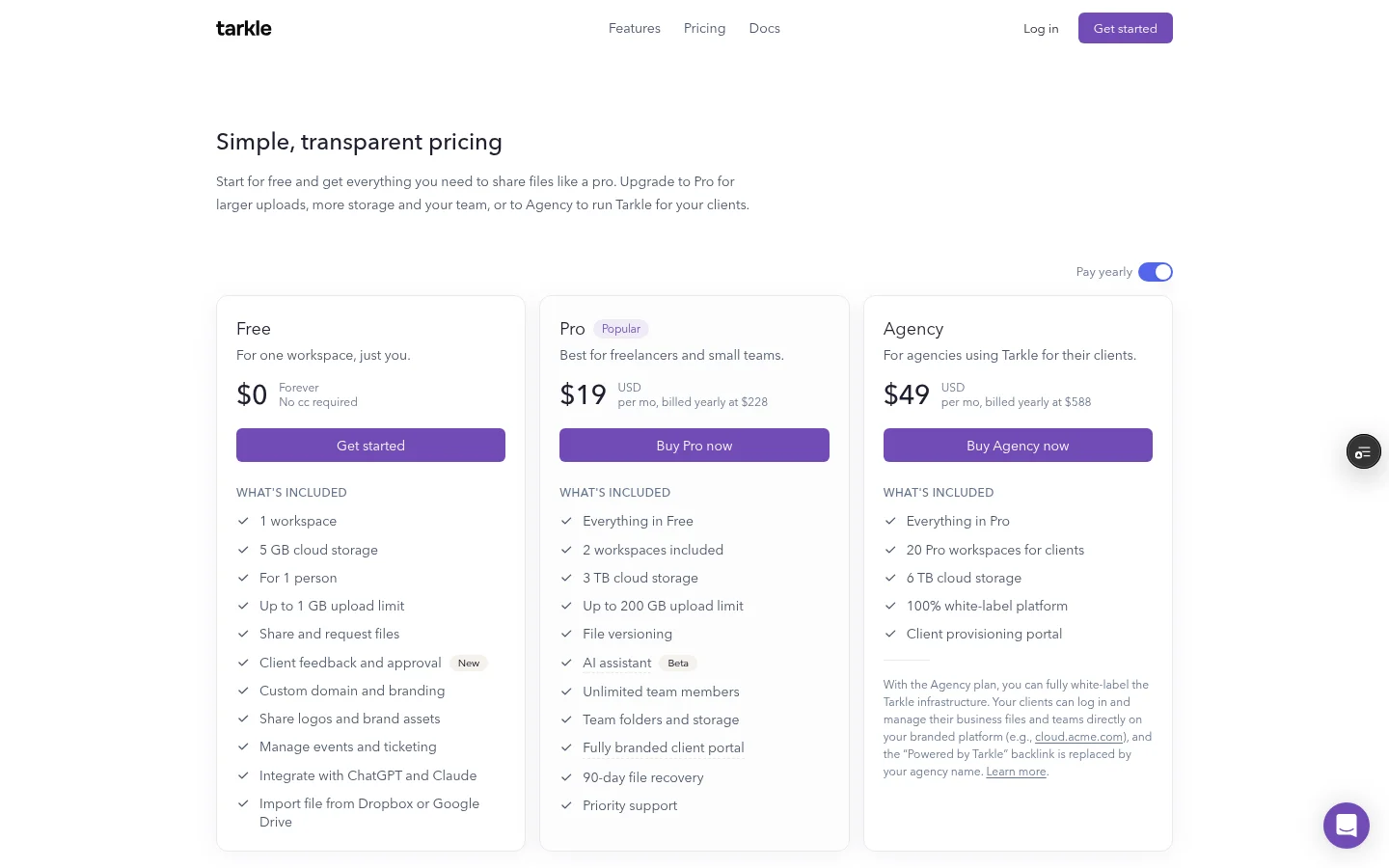
Paid transfers are a Pro feature. Connect Stripe with its publishable key, secret key and webhook signing secret. Then turn on Enable paid transfers under Settings, General, File settings. Only the workspace owner can change that switch. On the Free plan you can connect Stripe, but Enable paid transfers stays locked until you upgrade.
Create the transfer
Open Transfers and click Share to start a new transfer. Pick the video from your Library, or upload it.
Enter a title, which is required, and an optional summary of up to 150 characters. The title becomes the name of the product in Stripe and the heading your buyer sees.
Tick Charge for download (via Stripe) and enter the price. The currency starts at your workspace currency, and you can change it. For a video, set Free preview (seconds) to choose how much viewers see before they pay.
Create transfer stays disabled until you enter a price. Audio and video transfers have the same option among their download choices.
Use the clip's name as the title. It becomes the product name in Stripe and the heading your buyer reads before they pay.
What Tarkle switches off
When Charge for download is ticked, the password, burn after read, view only, email check and expiration date options are switched off and cleared. A paid transfer also uses the standard download, not a direct link. If one of those settings is still on, Tarkle refuses to create the transfer.
What your buyer sees
The buyer opens the link, reads the title, summary, files and price, and clicks Proceed to checkout. After the payment, the files open. The buyer is emailed a receipt with a link back to the files. Stripe pays the money out to your Stripe account.
The full steps are in How to charge for access to a transfer. Each sale appears on the Payments page of your workspace, with its price, number of purchases and total earned.
What Pro adds to paid delivery
Pro costs $29 per month, or $228 per year billed annually. Paid transfers are part of Pro, and so is an upload limit of up to 200 GB, which matters for long video masters. The paid transfers feature page covers the function, and the Stripe integration covers the connection to your own account.
If your clips also play on a page before anyone buys, read about video and audio sharing. It shows the built-in player that people use to watch or listen before they download.
What to remember about Tarkle
Tarkle's paid transfers charge for download on one link, and each payment goes to your own Stripe account. You need the Pro plan, Stripe connected and Enable paid transfers switched on. Compare the plans and pricing before you set up your first clip.