Gmail attachment limit: how to send bigger files to clients
Gmail's personal limit is 25 MB. Here is what happens over it and three routes that send a bigger file to a client.

The Gmail attachment limit for a personal account is 25 MB. Gmail automatically removes the attachment and adds it as a Google Drive link in the email. Your client gets a link instead of the file. This guide sets out the limit, shows which route to pick, and explains the three ways to send a bigger file to a client.
What the Gmail attachment limit is
Google's help page sets the limit by account type:
For personal Gmail accounts, the limit is 25 MB.
For work and school accounts, your Google Workspace administrator sets the attachment sending limits and attachment receiving limits.
If you send from a work or school account, ask your administrator which numbers apply before you plan a large send.
Pick a route by what you need to send
Situation | Route |
|---|---|
A small file the client expects in their inbox | Gmail attachment |
A large file you send once | A link with an expiry date |
A large file the client has and must send you | A file request |
Ongoing files with the same client | A client portal |
Each route fits a different job. The first two cover one file sent once. The last two fit a working relationship where files go both ways every month.
Three routes for a file over the limit
Send one link that expires
With Tarkle you pick files or folders, get one link, and send it anywhere. Put the link in the same email you would have used for the attachment. Recipients can open or download shared files without creating a Tarkle account. Link expiration lets you set a date after which a transfer or request link stops working, so the link does not stay open forever.
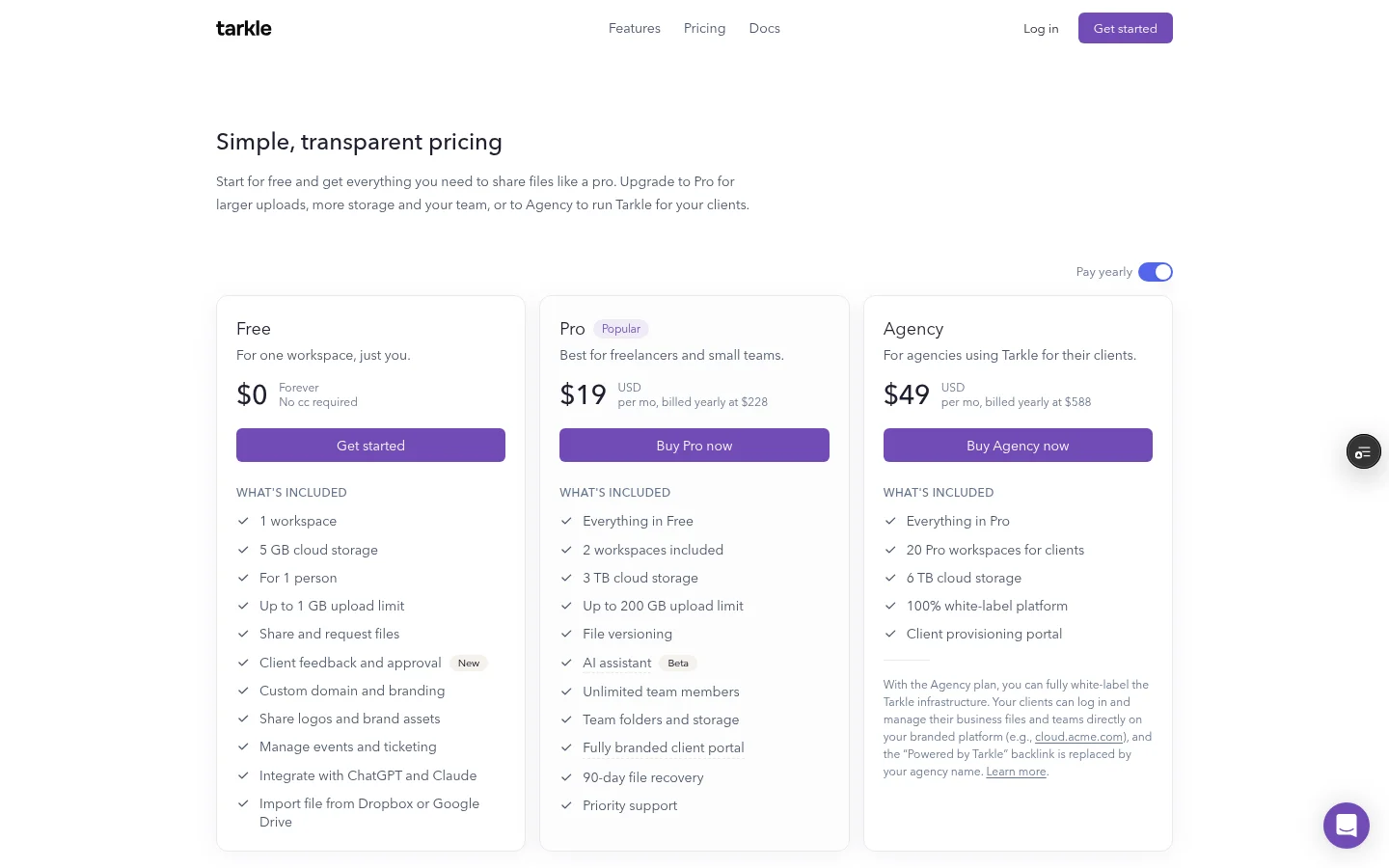
Free supports uploads and transfers up to 1 GB each. Pro and Agency support files up to 200 GB, and the Send large files page covers that route. You can set a link expiration date on a transfer.
Check the file size before you pick a route. Under 25 MB, a personal Gmail account can send the file as an attachment. Above that, use a link route.
Collect the file from your client
When the large file is coming from the client, ask for it instead of sending it back and forth. File requests collect files from anyone with one link, into the folder you choose, and stop chasing attachments. The Free plan includes file sharing and file requests.
Give each client a portal
If you send files to the same clients every month, a client portal keeps them in one place. It is a branded place where each client signs in with their email, sees only what you shared with them and sends files back. The fully branded client portal is on Pro, and Agency includes everything in Pro.
Questions people ask before they send
Does a file over the limit fail in Gmail? Gmail automatically removes the attachment and adds it as a Google Drive link in the email, so the client still gets a way to the file, as a link.
Does a link avoid every email rule? No. A link is not an attachment, but it still travels in an email. If your client's company runs strict mail rules, send yourself a test link first.
When Gmail is still the right choice
For a small file that a client expects in their inbox, Gmail works well, and it stays the right route for any file under the limit. Use a link route when the file is bigger, when you want the link to stop working on a date you choose, or when the same client sends files to you every month. For the bigger file itself, see how to send a large file to a client today.
What to remember about Tarkle
Gmail's personal limit is 25 MB. Over it, Gmail adds a Drive link instead of your file. Tarkle gives you one link you can set to expire, a way to collect files from clients with one link, and a branded portal on Pro and Agency, which take files up to 200 GB. Start for free, or compare the plans first.