Brand asset sharing for tour operators: a simple setup
Share logos, colors, fonts and approved photos with lodging and activity partners from one brand page per brand.

Brand asset sharing for tour operators is the job of getting the right logo, photo or color reference to the lodging, activity and destination partners who build your trips, and keeping old copies out of circulation. Partners change often: a hotel refreshes its photos, an activity company rebrands, a tourism board sends a new logo. This guide gives you a simple setup built on one brand page per brand, one share link per partner and a file request for the photos that come back. You do not need a full digital asset manager to start.
What partners need from a tour operator
A lodging or activity partner needs three things from you: the approved logo files, a small set of photos it may use in its own listings, and a short page of usage rules. The rules cover clear space around a logo, which colors sit well on photography, and which fonts are for print and which are for web. Tour operators often send these in separate emails, so a partner ends the season with three logo versions and no clear answer on which photo is cleared for use.
The fix is one source of truth, a clear way to hand it over and a way to take access back. The four steps below do that.

A four-step setup for partner assets
Step 1: Make one brand page for each brand you speak for
A brand page gathers one brand's logos, colors, fonts and guidelines on a single public page, so a partner opens one link and takes the right files. The editor has eight tabs: Basics, Links, Logos, Colors, Fonts, Assets, SEO and Settings. The Assets tab holds collections of files, plus Team, Press and Guidelines sections, so the usage rules sit next to the files they describe. If you speak for several brands, make one page for each, so a partner working on one brand never has to guess which logo applies.
Keep the approved photo set small and current. Thirty photos that are cleared for use beat three hundred that nobody has checked.
Step 2: Group the files by partner type
Give each partner type its own folder: lodging, activity and destination. Inside each one, keep the working files, such as full-resolution photos and seasonal material, apart from the copies you publish on the brand page. Plain names matter more than clever ones. A new team member should find the spring photos without asking.
Name each share link after the partner it goes to, such as the hotel or the activity company. When a partner leaves, you can disable that one link and leave the rest working.
Step 3: Send one share link per partner
Send each partner its own link rather than one link for everyone. Share files by link works this way: Pick files or folders, get one link, and send it anywhere. No account needed to download. For a season-long partnership, link expiration sets the end date. Set a date after which a transfer or request link stops working.
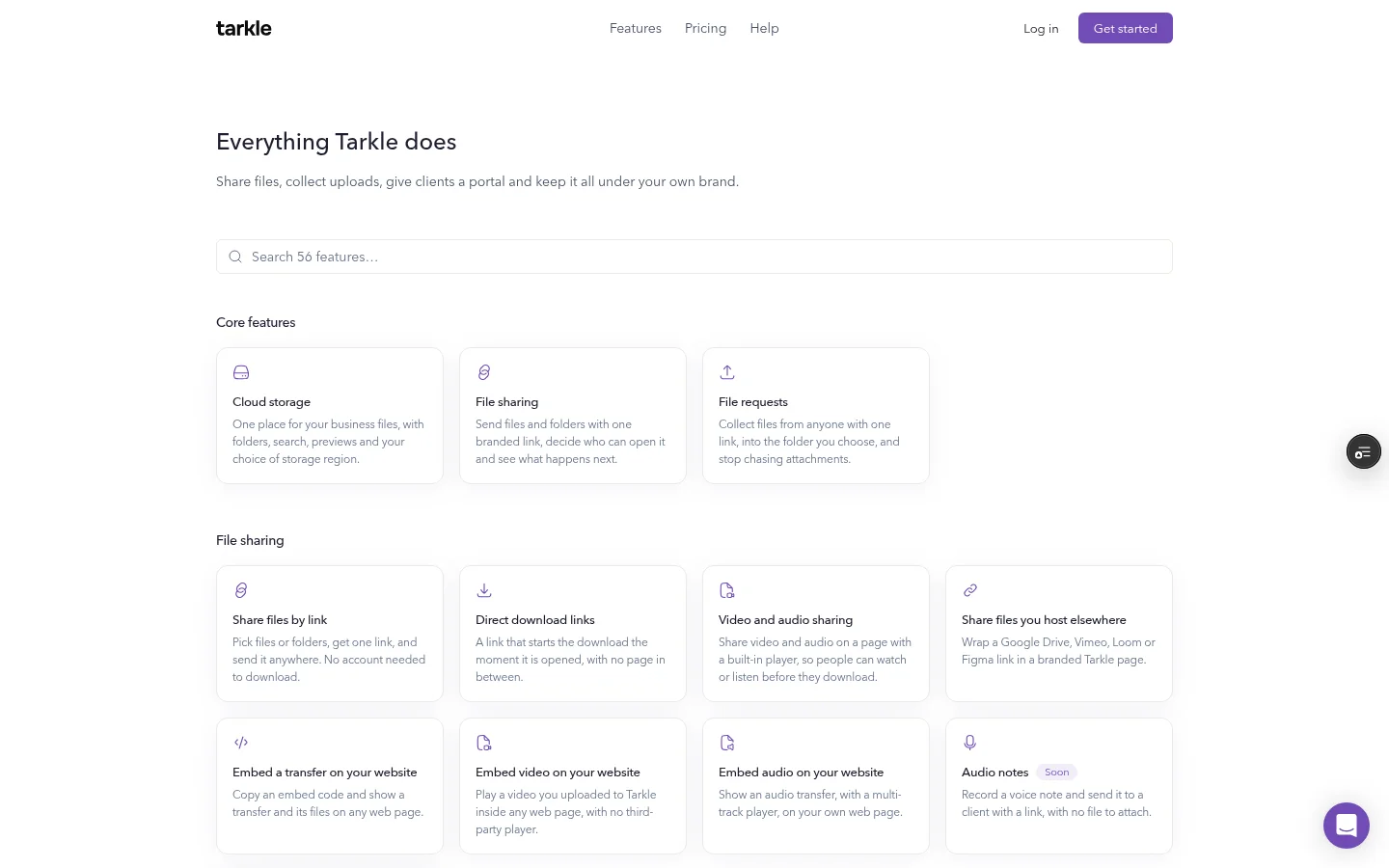
When a partnership ends, revoke access with one step: Disable a link in one click.
A partner that needs the whole set can use a kit link. Create a kit link on a published brand so anyone with the link can download the full kit without requesting access. If you want to see each request first, turn on approval. Require approval to download in a brand's Settings tab, then give access or reject each request in its Requests tab.
Step 4: Collect the photos that come back
Partners send back updated photos, new menus and activity shots. File requests handle that. File requests let anyone with the link send files to a folder in your workspace, with no sign-in. Write the usage rules into the request instructions: what you want, how it may be used and who may appear in it.
Photos can show people. Write your own consent wording, ask your legal adviser to review it, and put it in the request instructions. The wording is yours to set.
Where Tarkle brand pages fit
The brand pages feature covers the first step in one place. It describes itself this way: A clean page for a brand's logos, colours, fonts and images, to use inside your team or share with a client. The brand page help article lists the tabs in full.
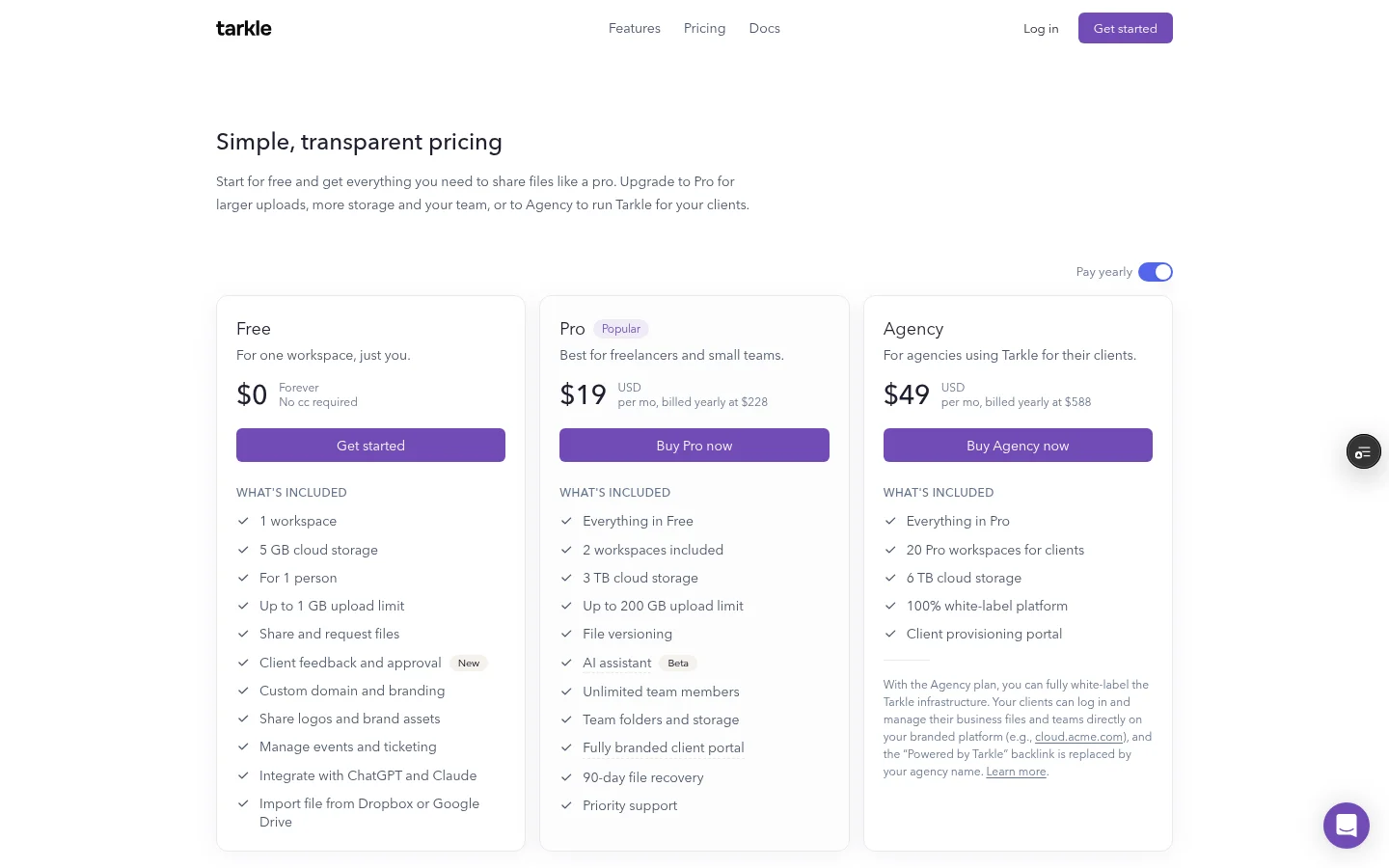
On the Free plan, Tarkle lists Share logos and brand assets among its features. Free allows one brand page for the whole organization, and Pro and Agency allow unlimited brand pages. A tour operator with one brand can start on Free.
Who can open a brand is set in its Settings tab. In the Access list on the Settings tab, a brand offers Public and Password protected. To give a partner a brand inside the client portal, assign it. Assign a brand page to one client contact or one organization, and it shows under Brands in their client portal. A brand goes to one of them, never both. The client portal is included on Pro and Agency. To create or edit a brand page, open Brands in your workspace.
When a full DAM is more than the job needs
A full digital asset manager suits a large library, approval steps before anything is published, or a team that tracks licence terms for each image. A tour operator who shares a set of logos, photos and usage rules with partners often needs less than that. The brand page tabs are Basics, Links, Logos, Colors, Fonts, Assets, SEO and Settings, and licence end dates are not among them. If you must track those dates for each image, a full DAM is the better fit, and this setup is not built for it.
If most of your partners are hotels, read the hotel-group version of this workflow first. It goes further into property folders.
A checklist for tour operators sharing brand assets
One brand page per brand, with logos, colors, fonts and short usage rules.
Folders by partner type, with plain names.
One share link per partner, named after the partner, with a date that ends it.
A full kit link only for partners who need the whole set.
A file request for each return of photos, with usage rules and consent wording in the instructions.
A check each season, with links disabled for partners you no longer work with.
For the wider picture of what belongs in a brand kit, read brand asset management for small business.
What to remember about Tarkle
Tarkle's brand pages hold a brand's logos, colors, fonts and guidelines on one public page, and you can assign a brand to a client in the client portal. Free allows one brand page for the whole organization, and Pro and Agency allow unlimited brand pages. Start for free and build your first brand page, or compare the plans on pricing.