Send files to the wrong client: how to stop it
Four settings to choose before you send, and the steps to take when a file reaches the wrong person.

You can lower the chance that you send files to the wrong client with a few settings chosen before you hit send: limit the transfer to one client organization, give the link an end date, and use a one-time link or a password for the most sensitive files. If it still goes wrong, disable the link at once and check what happened. None of this recalls a file that someone already downloaded or forwarded, so the workflow below is about making the mistake smaller, not about promising it can never happen.
This guide is for agencies, accounting firms and law offices that send client documents by link. It is a short workflow you can run on every send. The one-client control is on Pro.
Why you send files to the wrong client
Misdirected sends are rarely clever attacks. They are small, ordinary slips, and the same few show up again and again.
The wrong contact is picked. Two clients share a first name, or two contacts have similar addresses, and the transfer goes to the wrong one.
The link is forwarded. A client passes your link to a colleague, an accountant or a supplier. A link works for anyone who holds it, unless you have added a limit. Sharing by link needs no account to download.
An old link is reused. You paste last quarter's link into this quarter's email, or into a thread that now has a different person on it.
The link lives on. A link that has no end date is one you have to remember to close.

You do not need all of these controls on every send, but decide on purpose which ones a given file needs.
Limit the transfer to one client
The strongest prevention step is to tie the transfer to the client it is for. When you limit a transfer to one client organization, only one client organization can open it. A forwarded link then reaches a person from another company, and that is the case you want to cover.
Set it up once, then reuse it:
Make sure the client organization exists. The client organization and its people must exist before you can choose it.
Client organizations group contacts into the company they belong to. Keep one per company.
When you create the transfer, pick the one client organization it is for.
Read the organization name before you send, the same way you would read the To line of an email.
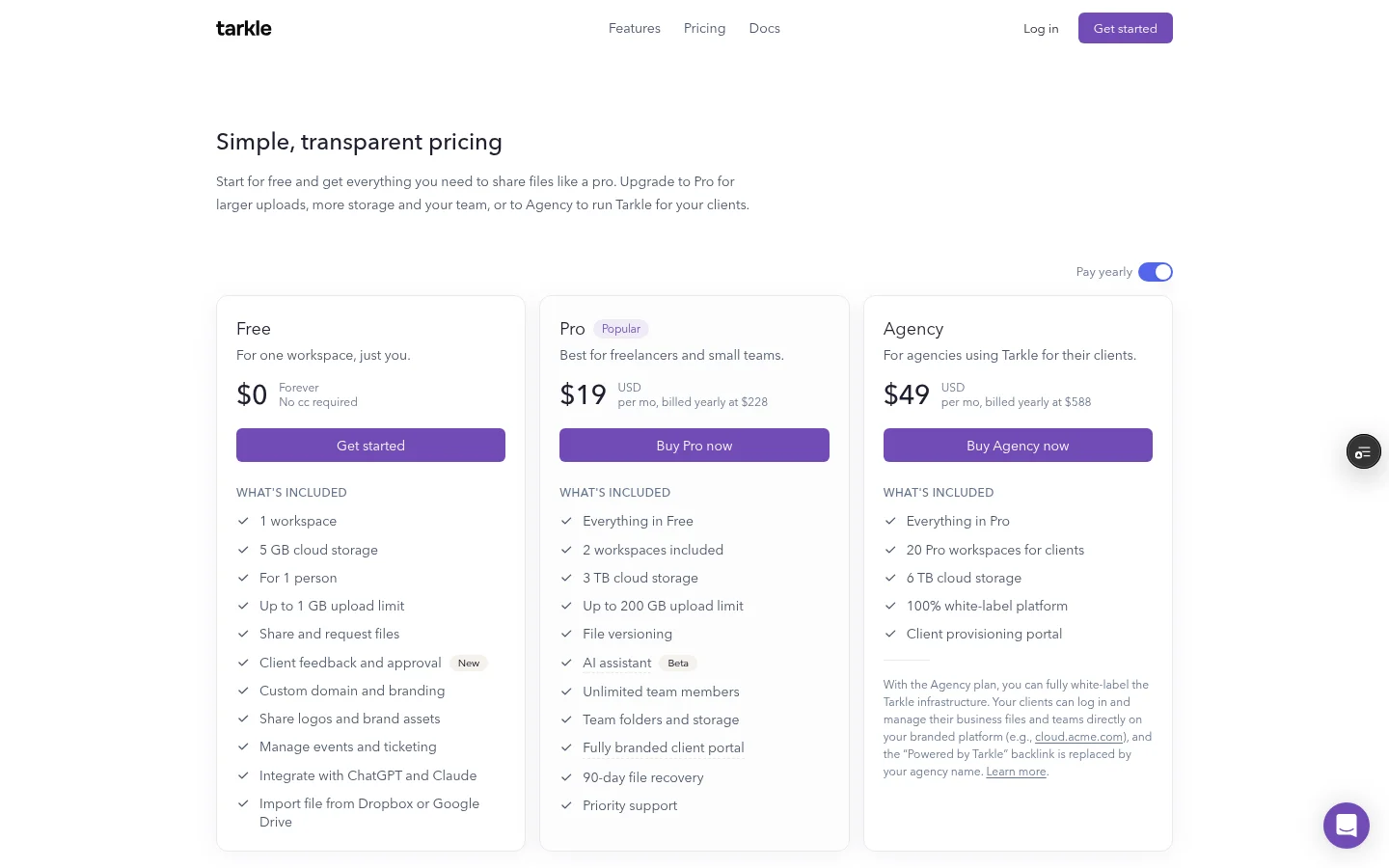
Client organizations are available on Pro and Agency, and Agency includes everything in Pro.
A second contact at the same client who is in that organization can open it too. The access check compares the signed-in client's organization with the transfer's, so a client from another company is refused.
Give every link an end date
A link that stays alive forever turns a small mistake into a long one. With link expiration you set a date, and after it the link stops working. An expiration date on a file transfer stops its link from opening the files after that day. An expired transfer shows an Expired badge in your list, so you can see what is still live. Paid transfers cannot have an expiry date, because the buyer paid for access.
Match the date to the job, not to your convenience. Contract drafts for review might need a week. A one-off set of tax documents might need a few days. If the client asks for more time, you can send a fresh transfer.
Control | What it does |
|---|---|
One client organization | Only one client organization can open it. |
End date | Stops its link from opening the files after that day. |
One-time link | Stops working after its first download. |
Password | Asks for a password before the transfer opens. |
Use a one-time link for the most sensitive files
Some files should be opened once and then be gone. A one-time link stops working after its first download. Opening the page does not use it up: the link is used when a download is recorded. After that, a later attempt is refused, as the burn after read help article explains. Burned transfers show a Burned badge in your list.
This changes what a forwarded link means. If the right client downloads first, a colleague who gets the forwarded email later finds a dead link. On a one-time link, if the laptop downloaded the files, a phone that opens the same link is refused too. It also gives you a signal: if your client says the link did not work, someone else may have downloaded first, and you can act on that straight away.
There is a trade-off. If the wrong person downloads first, they get the files. A one-time link fits a short list of sensitive documents sent to the right person, so combine it with sending to one client. Paid transfers cannot use a one-time link, a password or an end date, because payment is the access gate.
Password protection asks the recipient for a password before the transfer opens, and it is on Free too: you can protect shared files with passwords on the Free plan. Send the password by another channel, such as a text message or a phone call, never in the same email as the link. A transfer can also ask the visitor for an email address before the files open, which saves it as a contact. Paid transfers cannot use that email gate either.
What to do after a wrong send
Speed matters more than a perfect explanation. Work through these in order.
Disable the link. Pause the transfer from its menu, as the pause or disable help article explains. A disabled transfer shows a Disabled badge, and the link stops opening the files until you enable it again, so you can switch it back on if you disabled the wrong one.
Check what happened. Transfer status shows whether a transfer was delivered, viewed or downloaded. Each transfer carries Delivered, Viewed or Downloaded badges. If it was never viewed or downloaded, the risk is much smaller than if it was.
Tell the right people. If the files were downloaded, contact the person who got them, ask them to delete the files and to confirm that they did, and tell your own client. Whether you have a duty to report a wrong send depends on your profession, your contract and your country, so ask whoever advises you on that. This guide does not give legal advice.
Send it again correctly. Create a new transfer limited to the right client, with an end date.
Write down your wrong-send steps now, in three lines, and keep them where the team can find them.

What no tool can take back
Be honest with yourself and your clients about the limit. If someone downloaded the files, disabling the link does not remove their copy. If a client forwards a file as an attachment, the link is not involved at all. No setting, in Tarkle or anywhere else, stops a person who already holds the file from sharing it.
That is why prevention comes first, and why the settings above are layers rather than one lock. Sending to one client reduces who can open the link, an end date reduces how long it works, a one-time link reduces how often it works, and disabling reduces how long a mistake lasts.
If you send documents to the same clients every month, a client portal gives each of them one place to sign in. Each client signs in with their email and sees only what you shared with them. The client portal is available on Pro plans. Our guide on client portal or file sharing explains how to choose.
A checklist for every send
If you collect documents from clients rather than send them, read how to collect tax documents from clients securely. Before you send a client document, check these five things:
Is the transfer limited to the client organization it is meant for?
Does the link have an end date that fits the job?
Does this file need a one-time link or a password?
Did you read the recipient name twice?
Do you know who disables the link if it goes wrong?
What to remember about Tarkle
Tarkle lets you limit a transfer to one client organization. You can set an end date, add a one-time link or a password, and disable a transfer when a file goes to the wrong person. You can protect shared files with passwords on the Free plan. No setting takes back a file someone already downloaded, so these controls make a wrong send smaller. Start for free.