How to share documents with a client securely
Five steps to send documents to a client with a password, an expiry date, view-only and your own branding.

To share documents with a client securely, send one link per delivery, protect it with a password, give it an expiry date, and decide up front whether the client may download or only look. Then make the page the client lands on look like your business, not like your personal storage account. This guide shows how to do that and what to check in any file sharing tool.
You need the documents ready, the client's email address and about ten minutes.
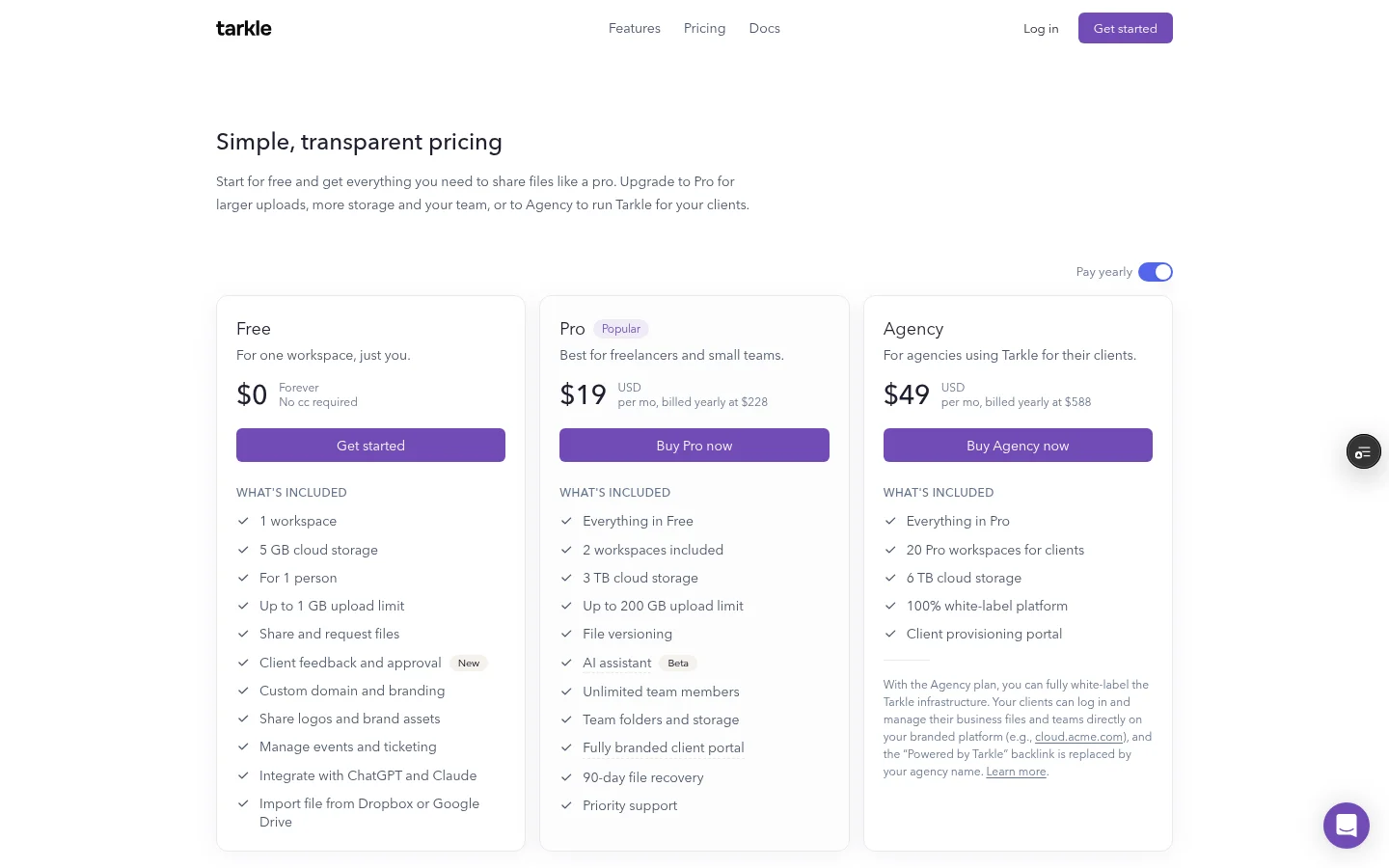
Tarkle's Free plan includes password protection, custom branding and a custom domain, so you can try those steps with real documents before you choose a paid plan.
Why a plain drive link can look informal
A link copied straight from a personal drive tells the client three things you may not intend. The page carries someone else's brand, not yours. The link may stay live after the project ends, unless you remember to turn it off. And the link is often the same one you used for your own notes, so the client sees folder names and file names that were never meant for them.
None of this makes a consumer drive unsafe. The issue is control and polish: with a high-profile client, or with documents such as contracts, proofs or financial statements, the client notices how the file arrives. A page with your name and logo, a link that stops working on a date you chose and a password that arrives separately all signal care.
Before you send anything, open the link in a private browser window. That is what your client sees: the page, the file names and any prompt for a password.
Share documents with a client securely in five steps
The steps below work in any tool that offers these controls.
Step 1: pick what the client may do
Decide first what the client needs. There are three common cases.
Read and keep. The client needs the final document to download, such as a signed contract or an invoice.
Read only. The client reviews a proof, a draft or a report and does not need a copy yet.
Use once. The file should work for one pickup and then stop.
Tarkle covers each case with a setting on the transfer. View-only transfers let people look at files without offering a download, so they suit review rounds, drafts and proofs. One-time links stop working after the first download. A client who only opens the page has not used the link, but a download uses it up. If someone needs a second go, Tarkle issues a fresh link.
Step 2: add a password and send it separately
A password means the link alone is not enough to open the documents. If the link is forwarded by mistake or sits in an old email thread, the files stay closed.
Create the transfer and add your documents.
Turn on the password and choose one that is not reused anywhere else.
Send the link by email and the password by another channel, such as a text message or a call.
Password protection makes a transfer ask for a password before anyone can open it, and the Free plan includes it. If you change the password later, visitors who had already unlocked the transfer must enter the new one.

Avoid putting the password in the same email as the link. If that mailbox is ever exposed, both pieces are exposed together.
Step 3: set an expiry date
Expiry is the control that ends access on its own. A document often only needs to be reachable until the client has read the proposal, approved the proof or filed the return. After that, a live link is only a risk.
Set the expiry to match the real need, and a little longer than you think the client will take. In Tarkle you set an expiration date on a file transfer, and after that day the link stops opening the files. Link expiration works the same way for a request link.
If you shared something by mistake, or a project ends early, you do not have to wait for the date. Revoke access instantly disables a link in one click, and pausing a transfer marks it Disabled, so you can enable it again whenever you need it.
Step 4: make the page look like your business
The first thing a client sees is the page, so brand it. Put your logo, colours and name on it and, if you can, serve it from your own address, such as files.yourstudio.com.
In Tarkle, custom branding puts your logo, colours and favicon on every transfer page, request page and portal. A custom favicon needs Pro: on Free the page keeps Tarkle's default favicon. Free includes a custom domain, so your links can open from your own address.
On Free, the Powered by Tarkle line always shows. On Pro you can turn it off with the switch in the Backlink card in Settings.
Link previews matter too. A transfer with a password, an email address gate or an expiry date that has passed shows your logo and workspace name with the title "Shared with you" when you paste its link into a chat. The card does not show file names or sizes, so a protected delivery does not leak its file name in the preview.
Step 5: check that it arrived
Security includes knowing what happened to the files. Transfer status shows whether a transfer was delivered, viewed or downloaded, so you can follow up with a client who has not opened it instead of sending the same documents to a new address.
If you send documents to the same client again and again, a client portal is the next step. On Pro and Agency, the client portal is a branded place where each client signs in with their email and sees only what you shared with them.
When a shared drive is enough
You do not need a separate tool for every document. A shared drive is fine when:
you work with the same two or three people every day and they already have accounts;
the documents are working files, not deliveries;
nobody outside the team needs to see a branded page.
It stops being enough when the client is outside your organization, expects a polished delivery, or when you need an expiry date, a password or a record of who opened the file. For a comparison of the two approaches, read how to share files with clients without Google Drive and is Google Drive safe for client files.

What about encryption?
Ask your tool how it protects files in transit and at rest, and read the answer in its own policy. Tarkle's privacy policy lists encryption in transit (TLS) and at rest (AES), two-factor authentication and passkeys for users, and it states plainly that no system is perfectly secure. Treat any tool that promises more than that with caution.
A short checklist before you press send
The link opens in a private window and shows your branding.
The files have clear names with no internal notes in them.
A password is set and goes to the client by a different channel.
An expiry date is set to match the real need.
The client can download or only view, and you chose which.
You know how to turn the link off if something goes wrong.
You can see whether the client viewed or downloaded it.
For more on sending files without an account, read secure file sharing without an account.
Common mistakes
Sending the password in the same message as the link.
Leaving a link live for months after the project ended.
Relying on view-only alone for something truly secret, without a password and an expiry date.
Naming files "final_v7_REAL", which tells the client the work is not finished.
Sharing a whole folder when the client needed one document.
What to remember about Tarkle
Tarkle lets you set a password and an expiry date on a transfer, and make it view-only or one-time. Password protection, custom branding and a custom domain are on the Free plan, which handles files up to 1 GB each; Pro and Agency handle files up to 200 GB. Start for free and apply the checklist to one live client project this week.