File sharing for freelancers: from brief to final files
A file sharing workflow for freelancers in five steps, from the brief to a protected final transfer.

File sharing for freelancers comes down to five moves per project: set up a folder, collect the brief and assets, send work in progress for feedback, send the final files with a link that expires, and note what went out and when. This article walks through one project in that order, then gives you a short checklist to repeat for every client. It works whether you are a designer, writer, photographer, video editor or consultant.
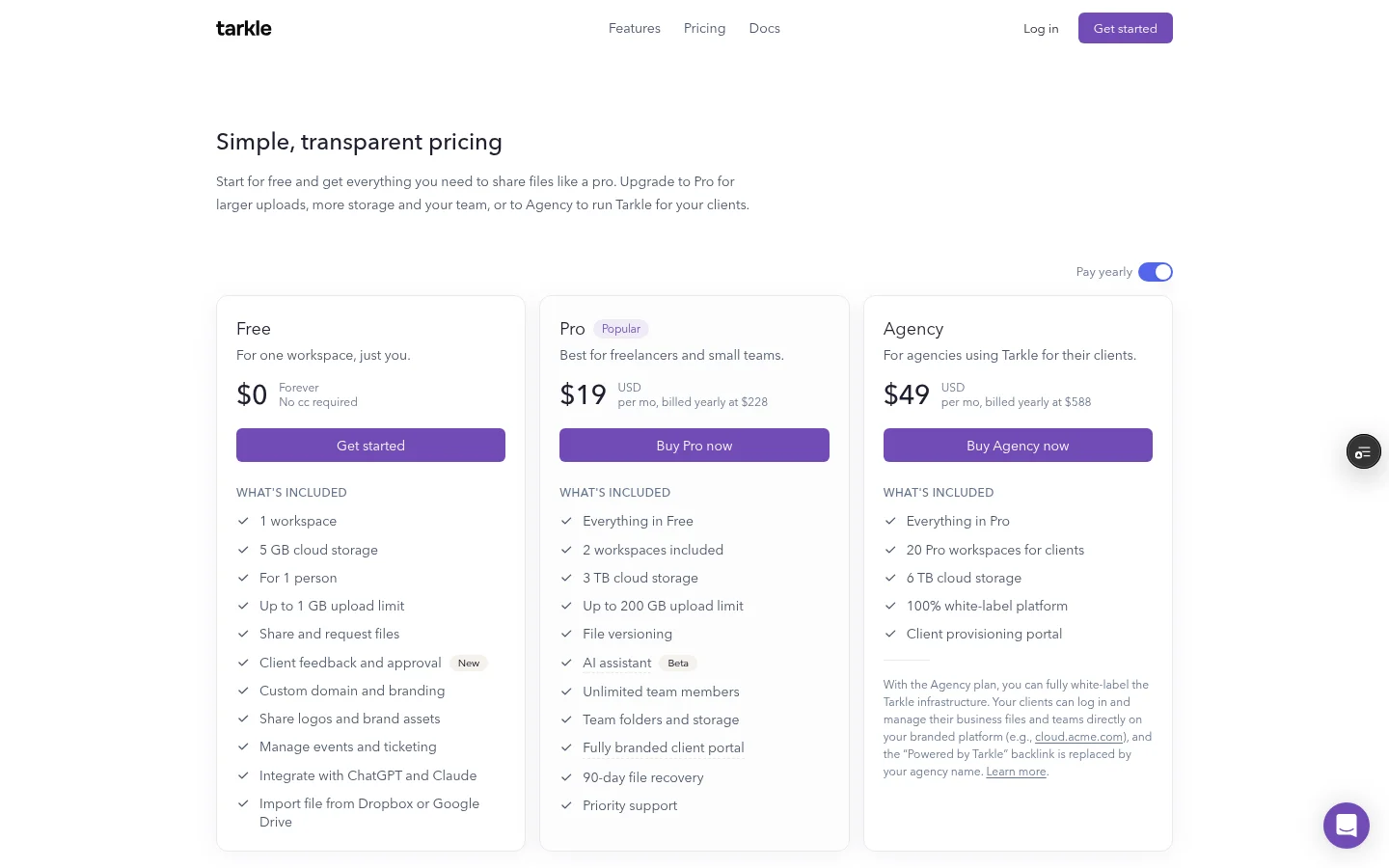
Tarkle's Free plan includes 5 GB of storage, file sharing and file requests, client feedback and approval, password protection for shared files and custom branding. You can run one real project on it before you decide whether you need a paid plan.
Set up one folder per client before the project starts
When you work for several clients from one login, the first mistake is a single pile of files. Create one folder for each client and, inside it, one subfolder per project. Everything you receive and everything you send for that project lives there, so a question like "which logo did they give me?" has one place to look.
Keep the naming boring and the same every time: client name, project name, then a stage such as brief, wip or final. Six months later you will not remember what "new-version-2" meant, but you will understand acme-rebrand/final.
Tarkle keeps your files in folders and a searchable library. The Free plan includes 5 GB of storage, which is enough to run one small project while you test the workflow.

Put a short notes file in each client folder with the contact name, the approval person and the deadline. You will open it more often than you expect.
Collect the brief and assets with a file request
A brief, logos, raw footage or product photos can arrive as email attachments across several messages, and one of them may be too large to send. A file request replaces that with one link. You write the instructions once, say exactly what you need (for example "logo as SVG, brand colours, three reference images"), and the person sending the files uses the link. They do not need a Tarkle account to send.
Set a destination folder so uploads land in the right client folder, and set a deadline for the request that matches your kickoff date. If you want a deeper guide to the collection step alone, read how to collect files from clients without chasing them.
In Tarkle, you create a file request with a title, instructions and a destination folder. You can also choose whether you are emailed when files arrive. Free includes sharing and requesting files, and the pricing page lists the limits for each plan.
Write the instructions as a checklist of file types, not a paragraph. Clients upload what you list and skip what you do not.
Send work in progress for feedback
Work in progress is where projects drift. When feedback arrives across email, chat and voice notes, it is hard to tell which version a comment refers to. Send each round as one link, say what you want reviewed ("layout and headline only, copy comes next") and name the date you need the answer.
The client should be able to comment on the work itself instead of replying to a thread. In Tarkle you turn images and PDFs into a review board. Clients comment on it and approve it with one link, and they do not need an account. On Free, a workspace can have 5 active boards at once. Pro and Agency have no board limit. To finish a review, the reviewer clicks Finish review, chooses Approve this work or Request changes, and submits. If you are mainly sending video, how to deliver video to clients covers the review stage for editors.
Name every round: v1, v2, v3. When a client says "go back to the first one", you want that to be a single file, not a search through your sent mail. Tarkle's file versions let you upload a new version of a file and return to an earlier one. File versioning is on Pro and Agency, not on Free, so on Free you keep the v1, v2 naming yourself.
Send final files with a link that expires
Final delivery is the moment to tighten things. Send the finished files in one transfer, with a short note that says what is inside and how to use it. Then add two controls: a password and an expiry date.
An expiry date means the link stops opening the files on a day you choose, so a link from last spring cannot be forwarded around this autumn. A password means a forwarded link alone is not enough: the recipient enters the password on a protected page before the files open. Send the password in a different message from the link, for example by text or chat when the link went by email. Neither one replaces good habits, but both are small and quick.
Tarkle gives a transfer one branded link. Link expiration and password protection are set on the transfer, and you can read more on link expiration and password protection. On Free you also get custom branding and one custom domain for your links. The small Powered by Tarkle line stays on Free pages.
Choose the expiry date when you send, not later. Two to four weeks after delivery gives a client time to download and check. If they need more time, send a fresh link.
When a freelancer needs a larger plan or another tool
Size is the first limit you will hit. On Free, uploads and transfers go up to 1 GB each, which suits documents, copy, design exports and small photo sets. Video, large photo galleries and layered source files can go beyond it. Pro and Agency support files up to 200 GB, and Pro is best for freelancers and small teams. Check what each plan includes before you decide.
Beyond size, Pro adds the fully branded client portal: a branded place for your recipients to receive and manage the files you share with them. That matters once you have repeat clients who expect to find everything in one place. The client portal is included on Pro and Agency.
Tarkle has no public roadmap, so there is no list to vote on. The changelog shows what has shipped, and the Support link in your dashboard reaches the team if you need something it does not offer.
Keep a simple record of what was sent and when
When a client says "I never got that", you want a one-line answer. The record can be small: a note in the client folder with the date, what you sent, which version and who received it. Add the date the client approved. That is the whole system.
Your tools can back it up. On a transfer, the badges and the Activity section show whether it was viewed or downloaded, so you can confirm a fact such as "you opened it on Tuesday" rather than chase a client. The activity page shows up to 50 actions in your workspace, lets you search them by name, and exports selected rows to a CSV file.
Write the record the day you send, in one line: 12 Nov, v2 homepage, link to Sam, expires 3 Dec. It takes ten seconds and ends most disputes.
File sharing for freelancers: the checklist for each client
Copy this into your project template and tick it off per client.
Folder created for the client and the project, with a notes file.
File request sent for the brief and assets, with a destination folder and a deadline.
Each feedback round sent as one named version with a review date.
Approval received in writing before final files go out.
Final transfer sent with a password and an expiry date, and the password sent separately.
One line added to the record: date, what, version, who.
Source files and extras sent only after approval (see how to share source files with clients).
The same pattern adapts to your field. Photographers can read a WeTransfer Portals alternative for photographers, and anyone sending drawings or technical sets can see how file sharing for architects handles review rounds.
Set this up today
Create a folder for your most active client, with a subfolder for the project you are on now.
Send one file request for any asset you are still waiting on, with a destination folder and a deadline.
Pick a naming pattern for versions and use it from the next round.
Add an expiry date and a password to your next final delivery.
Start the one-line record, and keep it for every send.
The Free plan covers the file request, the review board and the password-protected transfer, so you can test the whole routine before you upgrade.
What to remember about Tarkle
The Free plan includes a file request, a review board and password protection for shared files. It also includes 5 GB of storage and a 1 GB upload limit, and Pro raises the upload limit to 200 GB. Start for free.