Large file upload keeps failing? A 6-step checklist for editors
A six-step checklist for editors whose large uploads stall, and how to tell when the size limit is the cause.

If your large file upload keeps failing, the cause is usually one of six things: your connection, other apps using it, a folder sent as hundreds of loose files, one file that is simply too big, a retry that starts from the wrong place, or a busy hour. Work through the checklist below in order. Each step takes a few minutes, and the size-limit section after it tells you when the tool itself is the problem and no tweak will help.
You need the file or folder you are trying to send, a laptop or desktop you can plug into your router, and a browser tab you can leave open.
1. Test the line before you blame the tool
Plug in an Ethernet cable instead of using Wi-Fi. Wi-Fi drops packets when someone walks past the router or a neighbor's network overlaps yours, and a long upload has many chances to hit that.
Then run an upload speed test with any public speed test site. Look at the upload number, not the download number. Many home lines have a fast download and a much slower upload, so a fast plan can still upload slowly. Divide your file size by your upload speed to estimate the time, and expect the real transfer to take longer than that estimate.
Run the speed test twice, once now and once at a different hour. If the numbers differ a lot, your line is the bottleneck and the later steps about timing will help more than any setting.
2. Pause everything else that uses the connection
Cloud backup, photo sync, a Dropbox or iCloud client, Time Machine over the network, a video call and a streaming tab all compete with your upload. Pause them for the length of the transfer. A sync tool that wakes up halfway through can starve the upload long enough for it to time out.
Also close the tabs you do not need and keep the laptop awake. If the machine sleeps, the upload stops with it. Turn off sleep and plug in the power cable before you start.

3. Send a folder as one link, not a stack of uploads
Dragging hundreds of small files into an upload is slower and more fragile than sending one item. You have two ways to avoid that.
You can zip the folder first. A zip turns many files into one, which makes the transfer easier to track and keeps the structure intact. Video files are already compressed, so a zip rarely makes them smaller, but it still bundles them.
Or you can use a tool that sends a folder directly. In Tarkle you pick files or folders, get one link and send it anywhere. The recipient does not need an account to download. See share files by link for what the link does.
4. Split by scene when a single file is huge
When one file is very large, such as a full-length export or a multi-camera project, break it into logical pieces. Export by scene, reel or chapter instead of one long render. Each piece uploads on its own, so a failure costs you one scene and not the whole film.
For photographers, the same idea works per shoot day or per set. Name the pieces so they sort in order, for example ProjectName_01_Intro, ProjectName_02_Interview. Tell the recipient how many parts to expect so nothing is missed.
Split only if you have to. If the tool you use accepts your file size, one clean master is easier for the client than five parts to reassemble.
5. Plan a retry strategy
Plan for a failed upload to start again from the beginning. Files over about 100 MB go up in parts, four at a time. Smaller files go up in one piece. A part that fails gets one more try with a fresh address. If that try fails too, the whole upload stops, and the next attempt is a new upload.
A sensible routine looks like this:
Note the file size and the time the upload started.
If it fails, check the connection and any sync tools, then start the upload again once.
If it fails a second time at a similar point, stop and change one thing: switch from Wi-Fi to cable, close a sync tool or split the file.
If the same error appears at a similar size every time, move to the next section.
Keep the original file untouched until the recipient confirms they can open the copy. With Tarkle, transfer status shows whether a transfer was delivered, viewed or downloaded, so you can check that the copy arrived.
6. Send at a quiet hour
Your home or office line is shared with other people and other devices, and the service you upload to has busy periods too. Early morning or late evening, local time, often gives you a steadier connection and fewer people on your network. Start the transfer, leave the machine alone and check on it later.
This will not fix a file that is over a limit, but it helps a borderline connection finish.
When a large file upload keeps failing: check the size limit
If the upload fails at the same point every time, check the file against the tool's maximum file size. In Tarkle the size is checked as soon as the upload starts. On Tarkle's upload page, a file over your plan's limit is refused with "This file is larger than your plan allows." before any part of it is sent. A file that exceeds the limit will never finish, however good your connection is, and retries only waste hours. That is the clear signal to switch tool, or to split the file as in step 4.
Storage can stop an upload too. If the file would be more than the storage left on your plan, the upload page says "This file would exceed your storage limit." Check the space before a big upload.
Tarkle's Free plan supports uploads and transfers up to 1 GB each. Pro and Agency support files up to 200 GB, and the send large files page has the details. Compare the limit on plans and pricing with the size of your file.
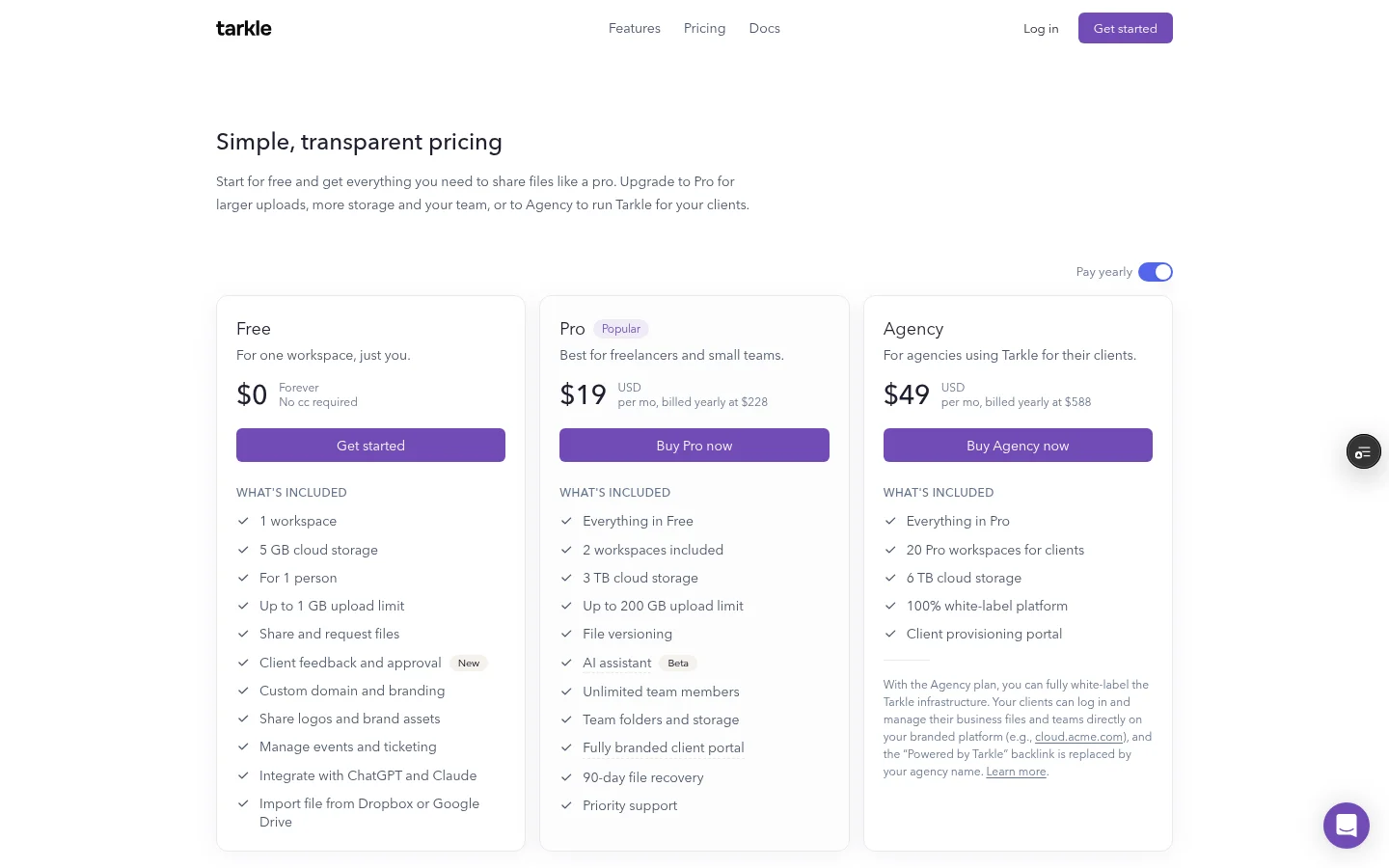
Upload speed depends on your line, so a higher limit does not make a transfer faster. What it does is let you send the file in one piece.
Recipients open the files from a link without an account. A direct download link starts the download as soon as someone opens it, with no transfer page in between. It works only on a transfer set to direct download, which the direct download links in Tarkle help article explains.
Common mistakes
Judging the connection by the download speed instead of the upload speed.
Leaving a sync or backup app running during a big upload.
Retrying five times in a row without changing anything.
Splitting a file that already fits the limit.
Deleting the original before the recipient has confirmed the copy opens.
Run through the checklist once with your next big delivery and write down what worked, so the next upload does not start from guesswork. For a wider view of delivering finished work, read how to deliver video to clients.
What to remember about Tarkle
Tarkle sends a file or a folder as one link, and the recipient opens or downloads it without an account. Free supports uploads and transfers up to 1 GB each, and Pro and Agency support files up to 200 GB, so a file over 1 GB needs one of those plans. A higher limit does not make a slow line faster, so the checklist above still applies. Start for free and send a smaller test first.